> ## Documentation Index
> Fetch the complete documentation index at: https://docs.promo.cv/llms.txt
> Use this file to discover all available pages before exploring further.
# Forms
> Create custom application forms with flexible question types to collect information from ambassadors
Forms let you build custom questionnaires that can be attached to tasks or activations. Use them to collect specific information from brand ambassadors — feedback after events, availability confirmations, check-in details, and more.
## Prerequisites
* An active agency account with access to the dashboard
## Creating a form
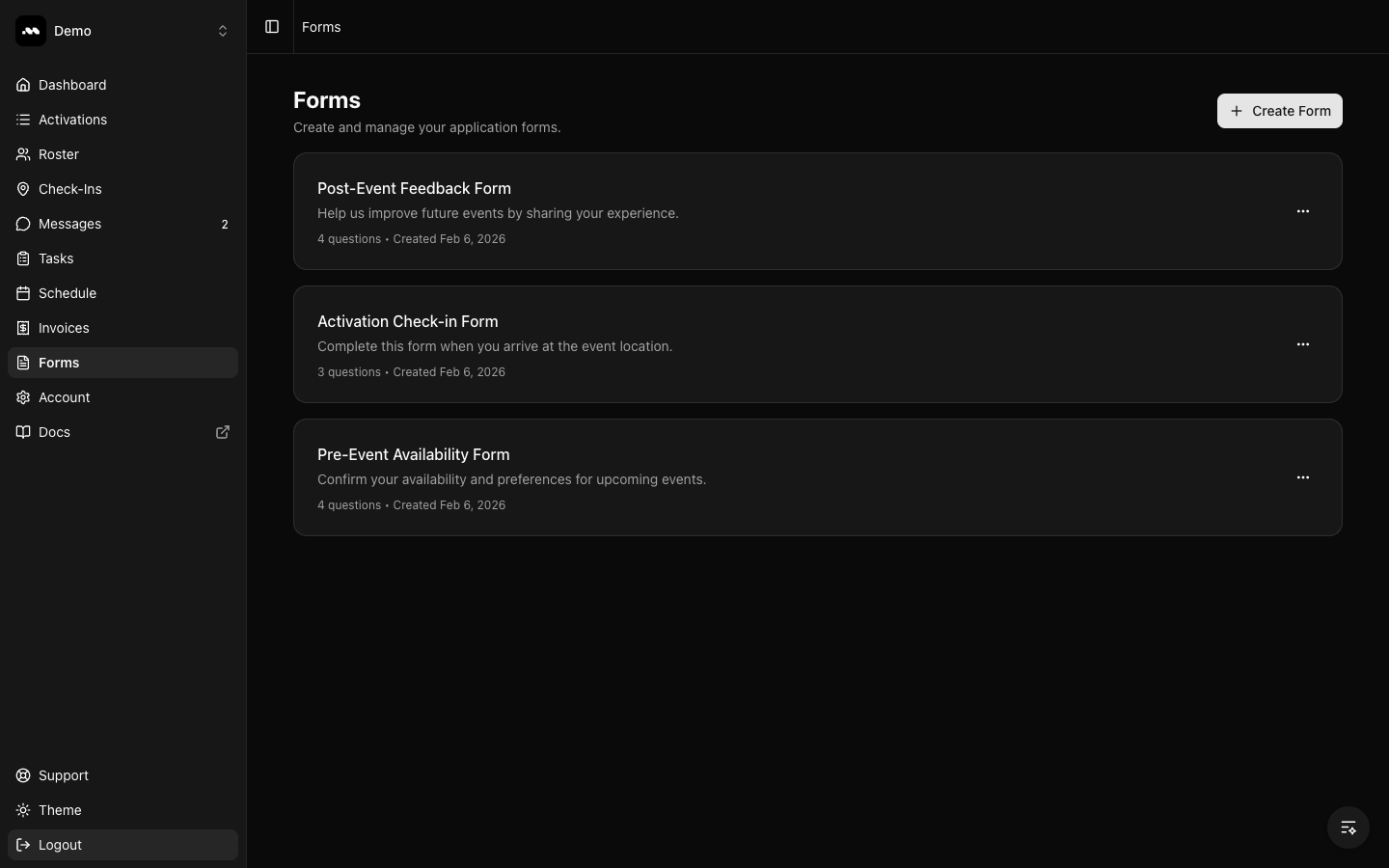
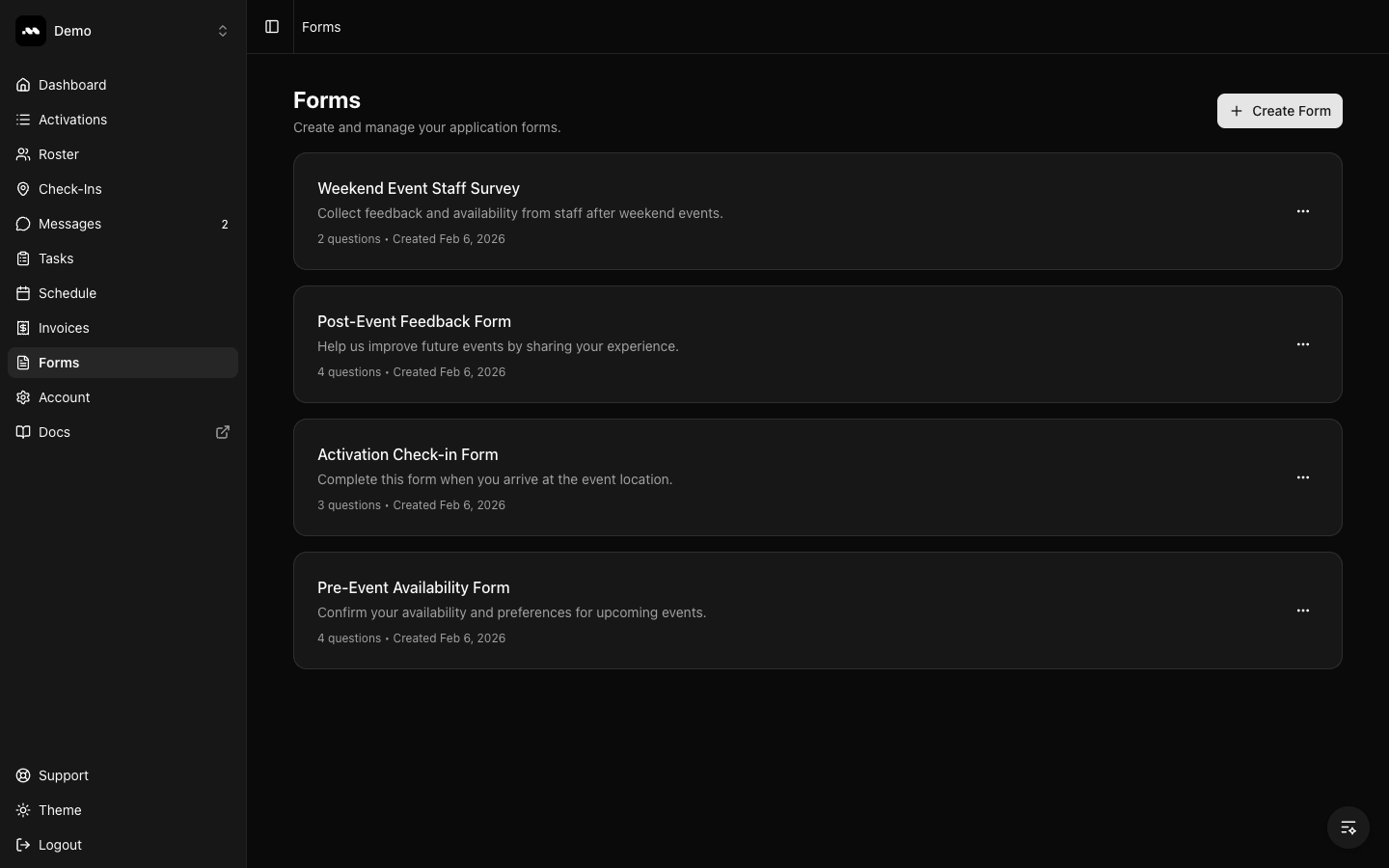
From your agency dashboard, click **Forms** in the sidebar. You'll see a list of all your existing forms, each showing the form name, description, question count, and creation date.
Click the **Create Form** button in the top-right corner.
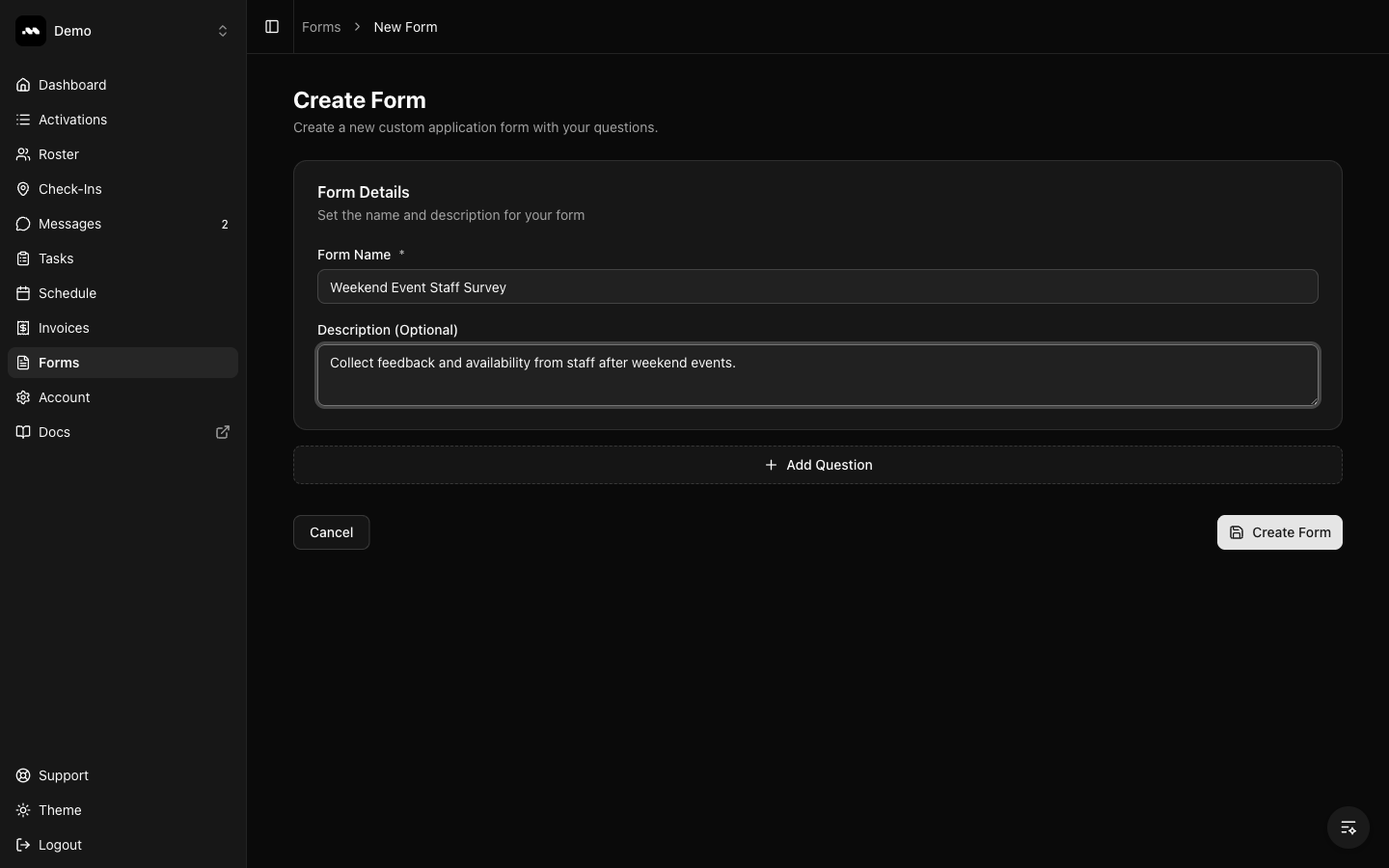
 On the Create Form page, fill in the **Form Name** (required) and an optional **Description**. The name helps you identify the form when attaching it to tasks later.
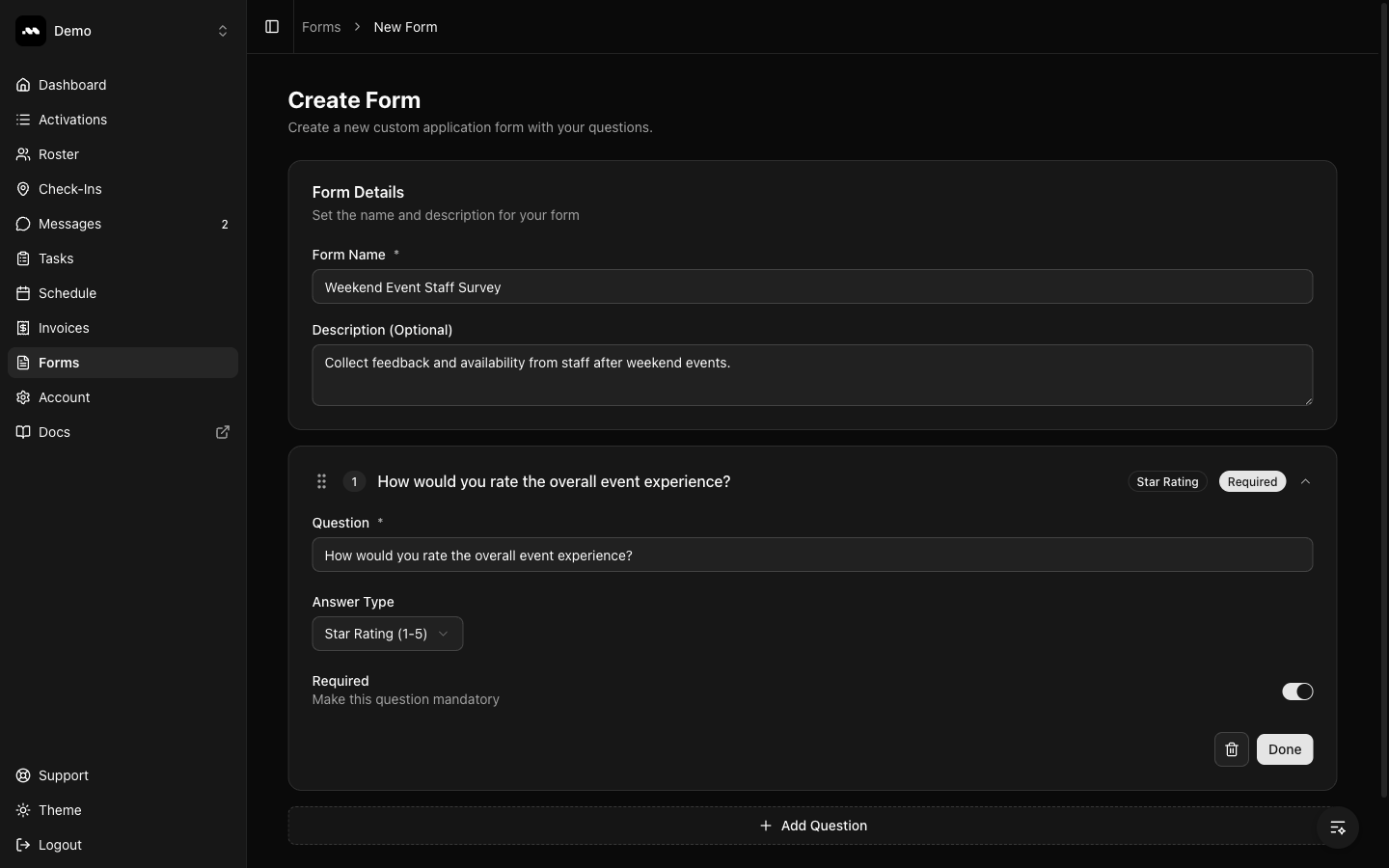
 Click **+ Add Question** to add your first question. Each question has:
* **Question text** — The question ambassadors will see
* **Answer Type** — Choose from Short Text, Paragraph, Multiple Choice (Radio), Multiple Choice (Checkbox), Star Rating (1-5), or File Upload
* **Required toggle** — Make the question mandatory or optional
Click **+ Add Question** to add your first question. Each question has:
* **Question text** — The question ambassadors will see
* **Answer Type** — Choose from Short Text, Paragraph, Multiple Choice (Radio), Multiple Choice (Checkbox), Star Rating (1-5), or File Upload
* **Required toggle** — Make the question mandatory or optional
 Use **Star Rating** for quick satisfaction scores and **Paragraph** for open-ended feedback. **File Upload** is useful for collecting photos or documents.
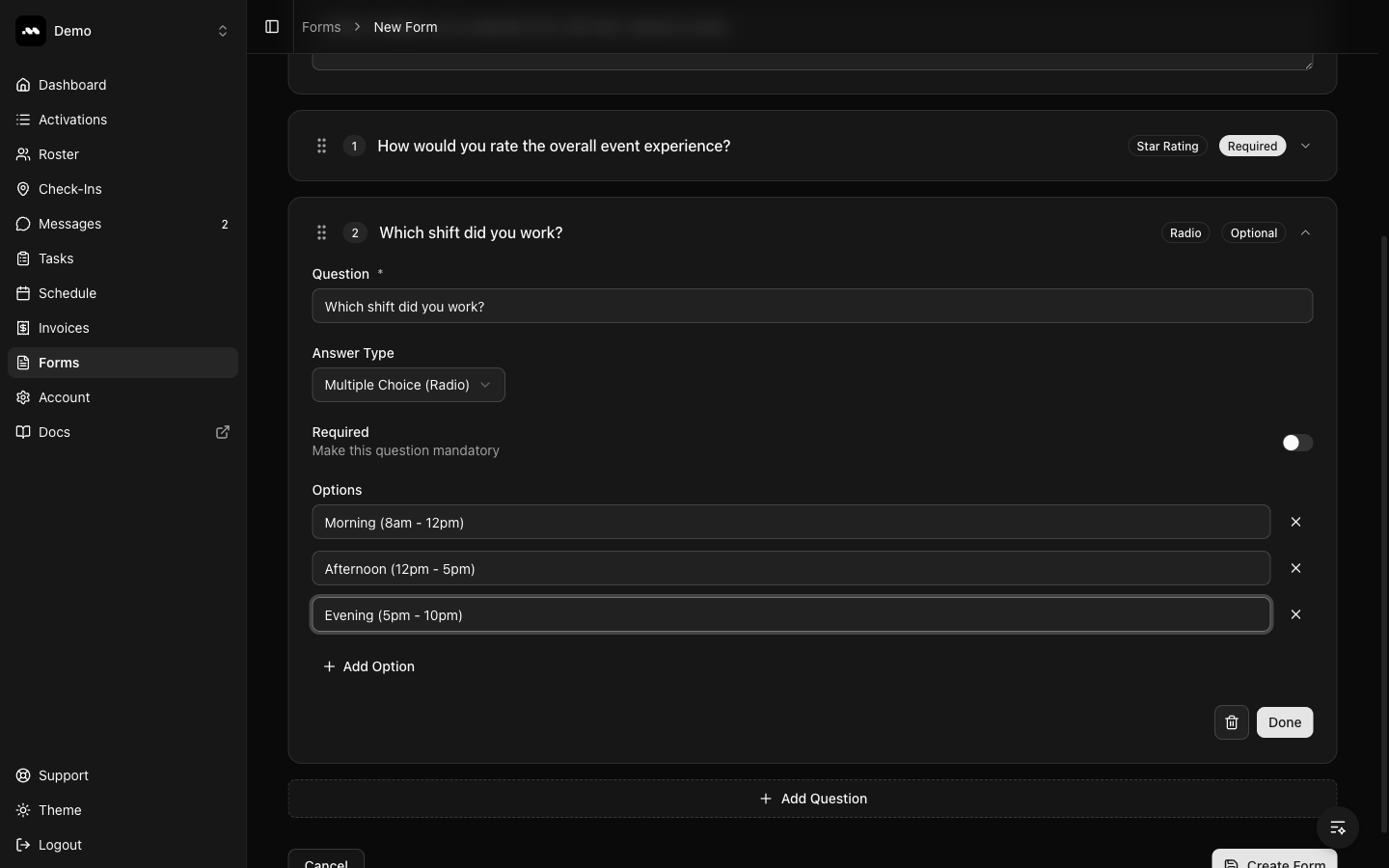
When you select **Multiple Choice (Radio)** or **Multiple Choice (Checkbox)** as the answer type, an **Options** section appears. Type each option and click **+ Add Option** to add more.
Radio questions allow ambassadors to select one answer. Checkbox questions allow multiple selections.
Use **Star Rating** for quick satisfaction scores and **Paragraph** for open-ended feedback. **File Upload** is useful for collecting photos or documents.
When you select **Multiple Choice (Radio)** or **Multiple Choice (Checkbox)** as the answer type, an **Options** section appears. Type each option and click **+ Add Option** to add more.
Radio questions allow ambassadors to select one answer. Checkbox questions allow multiple selections.
 Once you've added all your questions, click **Create Form**. You'll be redirected to the Forms list where your new form appears at the top.
 ## Managing forms
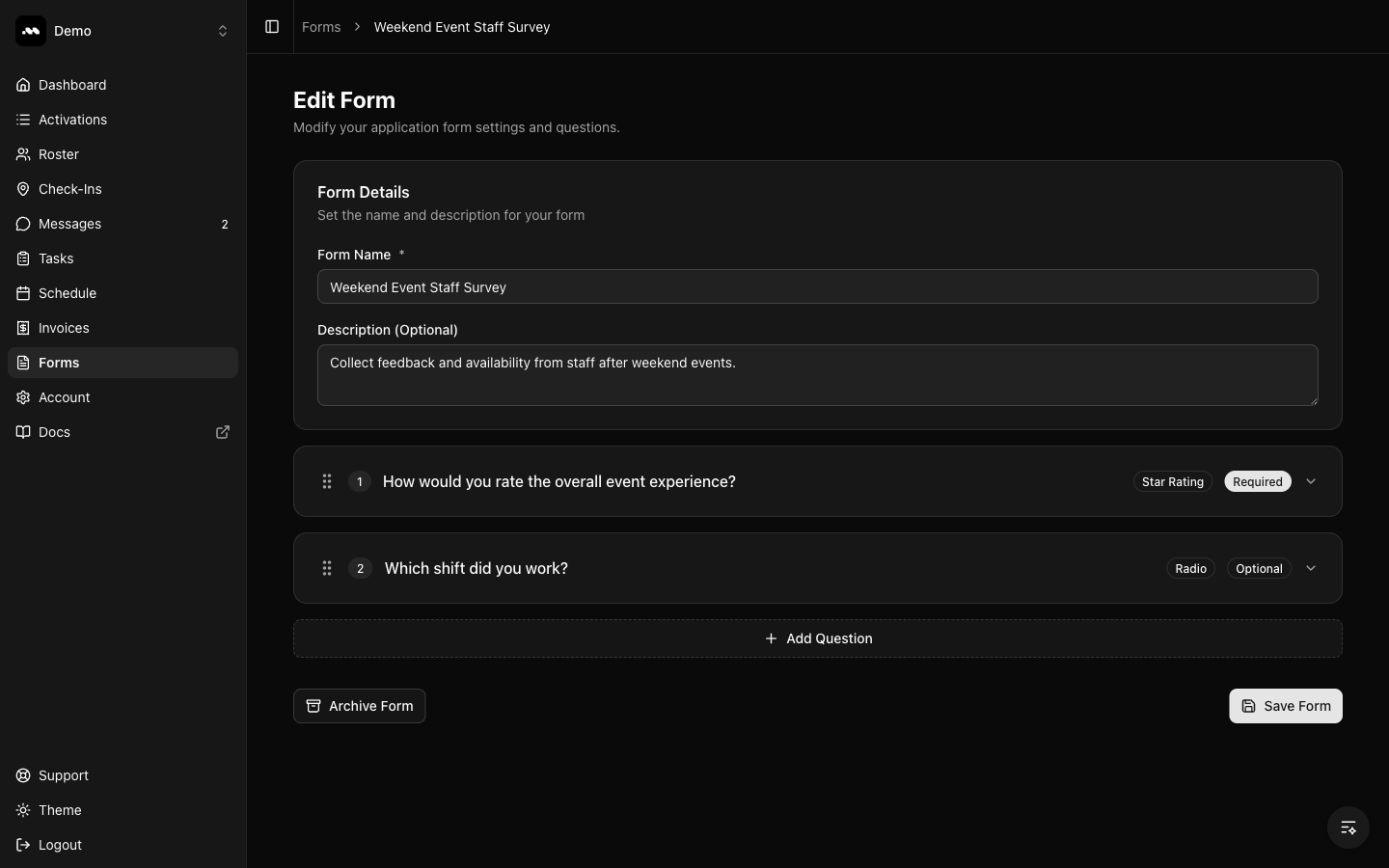
Click any form card to open the form builder. You can modify the form name, description, and all questions. Use the drag handles to reorder questions. Click **Save Form** when done.
## Managing forms
Click any form card to open the form builder. You can modify the form name, description, and all questions. Use the drag handles to reorder questions. Click **Save Form** when done.
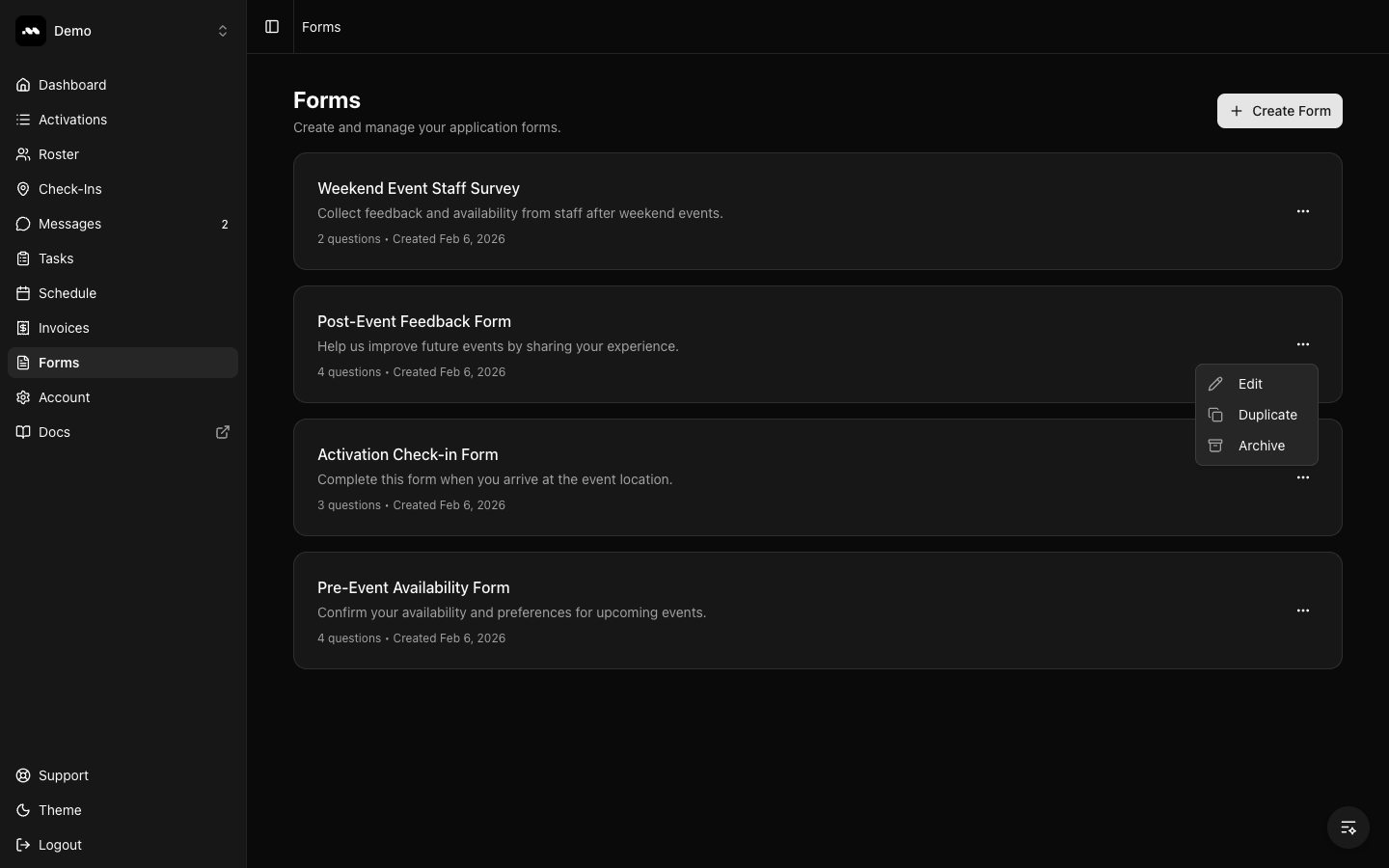
 Click the **three-dot menu** on any form card to access quick actions:
* **Edit** — Open the form builder
* **Duplicate** — Create a copy of the form with all its questions
* **Archive** — Remove the form from your active list
You can also archive a form from the edit page using the **Archive Form** button.
Click the **three-dot menu** on any form card to access quick actions:
* **Edit** — Open the form builder
* **Duplicate** — Create a copy of the form with all its questions
* **Archive** — Remove the form from your active list
You can also archive a form from the edit page using the **Archive Form** button.
 ## Question types reference
| Type | Best for | Ambassador input |
| -------------------------- | ----------------------------- | ---------------------- |
| Short Text | Names, short answers | Single-line text field |
| Paragraph | Detailed feedback, comments | Multi-line text area |
| Multiple Choice (Radio) | Single selection from options | Radio buttons |
| Multiple Choice (Checkbox) | Multiple selections | Checkboxes |
| Star Rating (1-5) | Satisfaction scores, ratings | 1-5 star selector |
| File Upload | Photos, documents, receipts | File picker |
Forms integrate with the **Tasks** feature. When creating a task, you can attach a form to collect structured responses from ambassadors alongside the task completion.
Duplicating a form copies all questions and options, making it easy to create variations of existing forms without starting from scratch.
## Question types reference
| Type | Best for | Ambassador input |
| -------------------------- | ----------------------------- | ---------------------- |
| Short Text | Names, short answers | Single-line text field |
| Paragraph | Detailed feedback, comments | Multi-line text area |
| Multiple Choice (Radio) | Single selection from options | Radio buttons |
| Multiple Choice (Checkbox) | Multiple selections | Checkboxes |
| Star Rating (1-5) | Satisfaction scores, ratings | 1-5 star selector |
| File Upload | Photos, documents, receipts | File picker |
Forms integrate with the **Tasks** feature. When creating a task, you can attach a form to collect structured responses from ambassadors alongside the task completion.
Duplicating a form copies all questions and options, making it easy to create variations of existing forms without starting from scratch.