> ## Documentation Index
> Fetch the complete documentation index at: https://docs.promo.cv/llms.txt
> Use this file to discover all available pages before exploring further.
# Messages
> Communicate with brand ambassadors directly from your dashboard.
Messages lets you have conversations with brand ambassadors about your activations. You can reply to incoming questions, start new conversations with roster members, and view ambassador profiles — all from one place.
## Your inbox
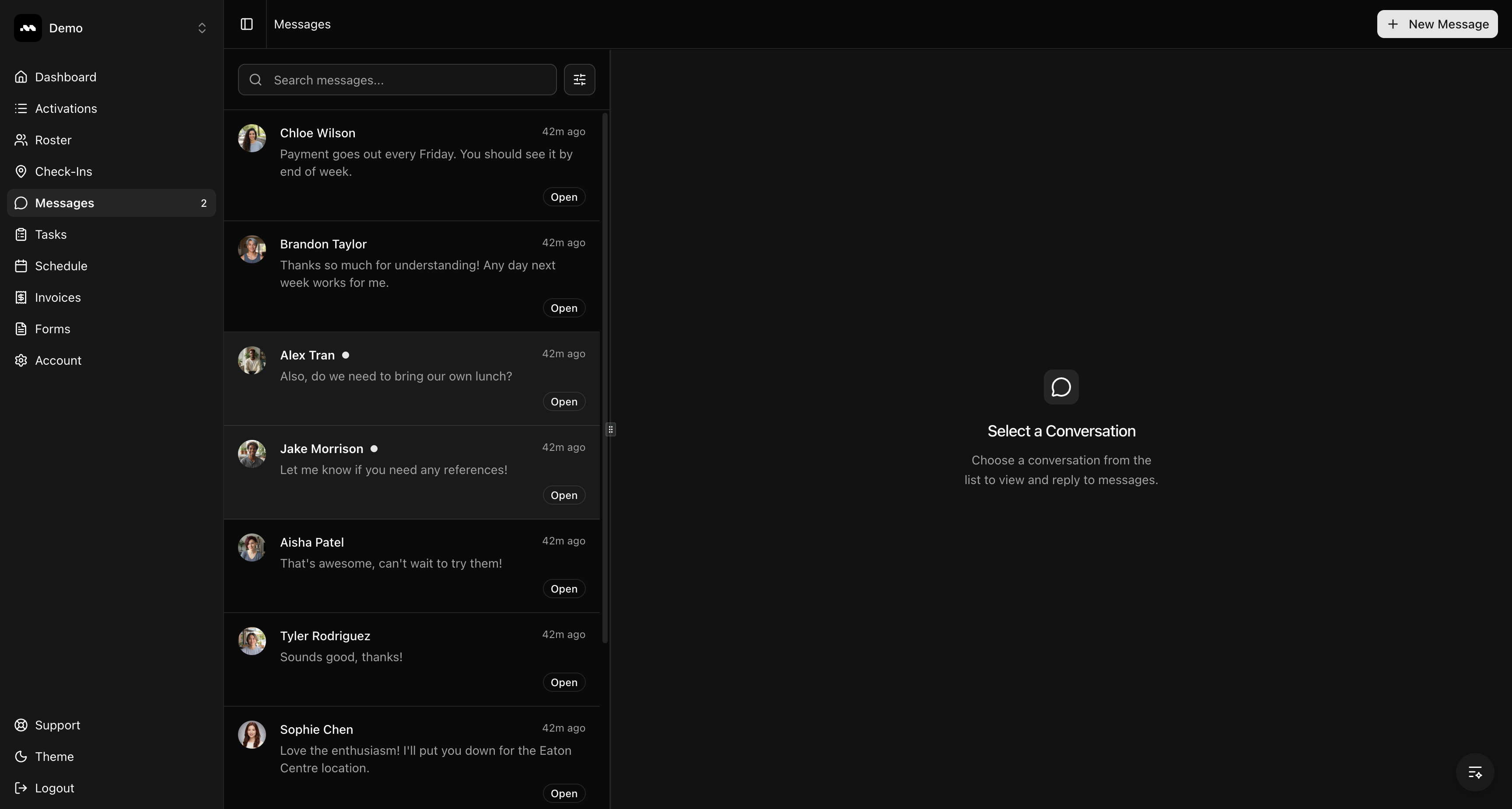
Navigate to **Messages** in the sidebar to see all your conversations. Each conversation shows the ambassador's name, a preview of the last message, and the conversation status.
Unread conversations are highlighted with a dot next to the ambassador's name.
 ## Read and reply to a conversation
Click any conversation in the list. The message thread opens in the right panel, showing the full history organized by date.
Your messages appear in blue on the right. Ambassador messages appear in gray on the left.
## Read and reply to a conversation
Click any conversation in the list. The message thread opens in the right panel, showing the full history organized by date.
Your messages appear in blue on the right. Ambassador messages appear in gray on the left.
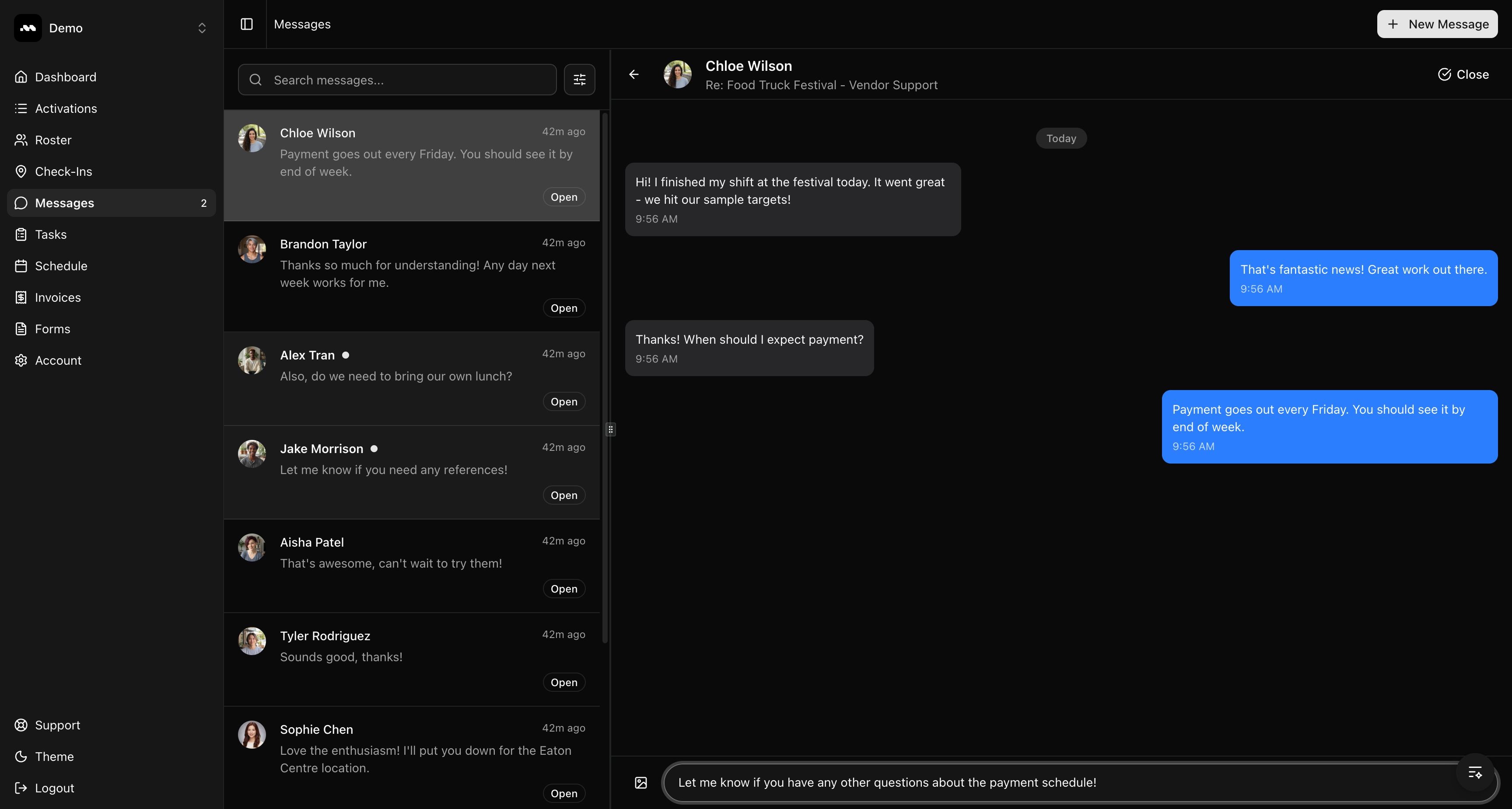
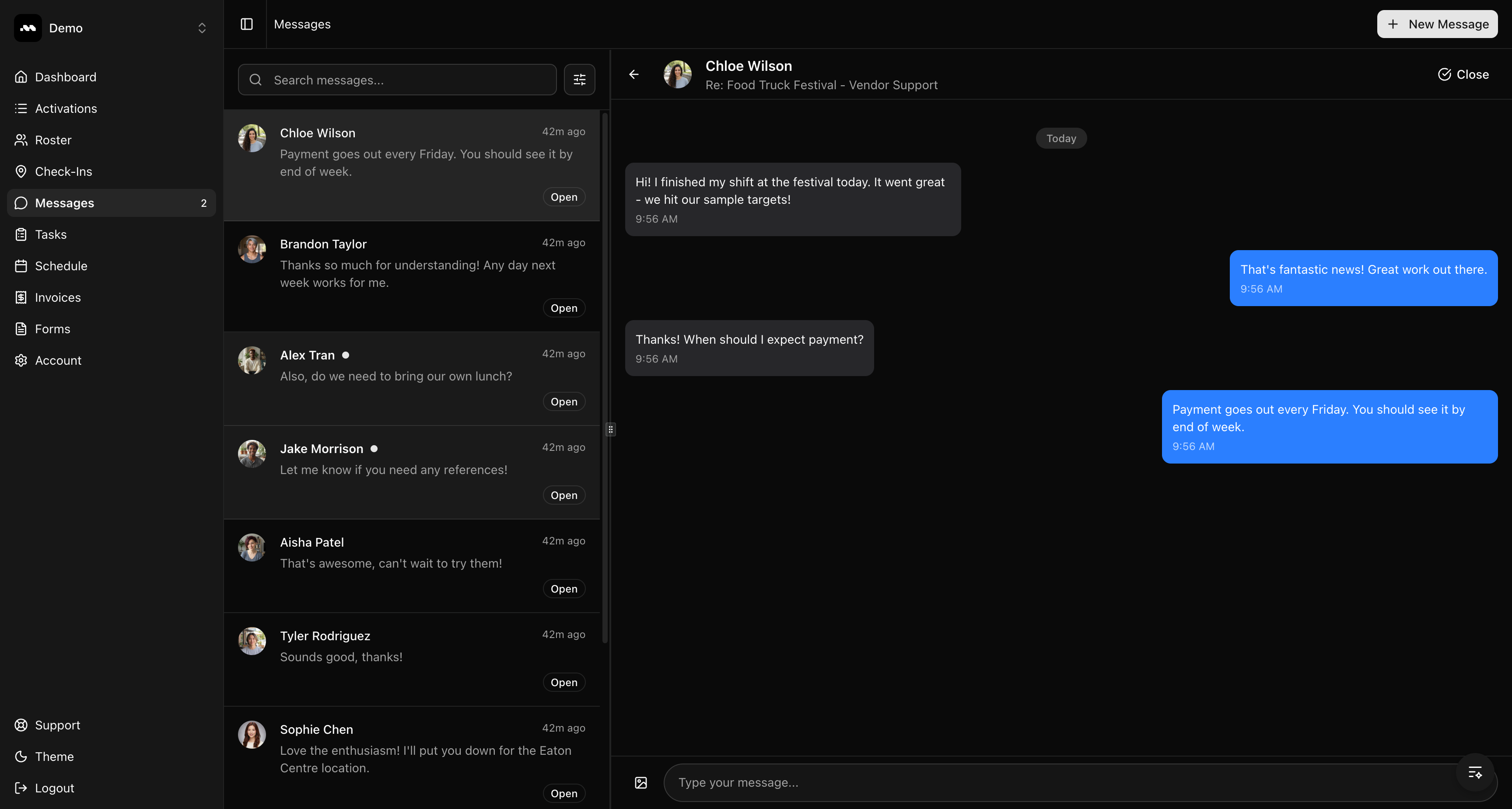 Click the text field at the bottom and type your message. Press **Enter** to send, or **Shift + Enter** to add a new line.
You can also attach an image by clicking the image icon to the left of the text field.
Click the text field at the bottom and type your message. Press **Enter** to send, or **Shift + Enter** to add a new line.
You can also attach an image by clicking the image icon to the left of the text field.
 The ambassador will receive an email notification if they don't read your reply within 5 minutes.
## Start a new conversation
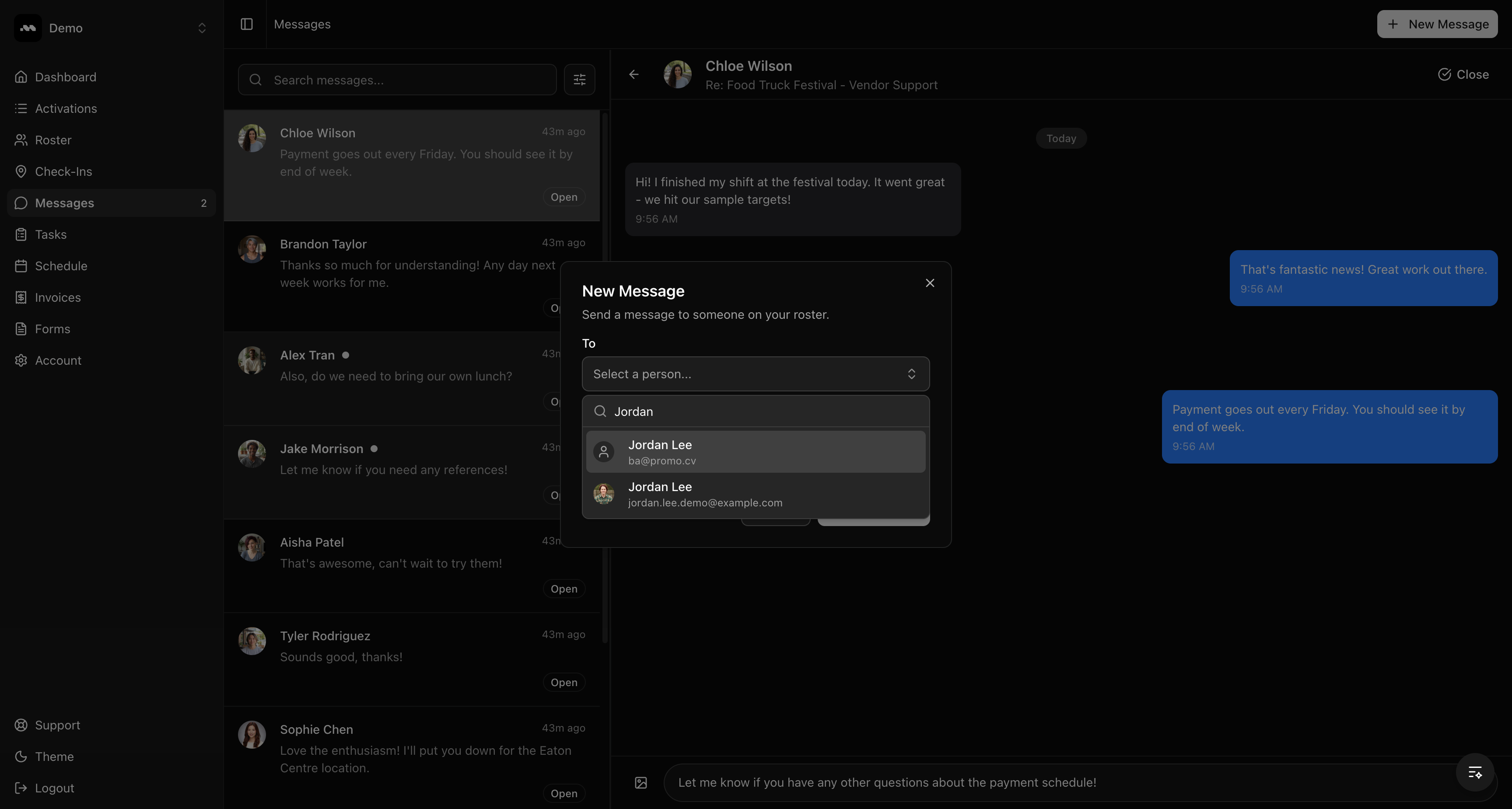
Click the **+ New Message** button in the top right corner. A dialog opens where you can search your roster.
The ambassador will receive an email notification if they don't read your reply within 5 minutes.
## Start a new conversation
Click the **+ New Message** button in the top right corner. A dialog opens where you can search your roster.
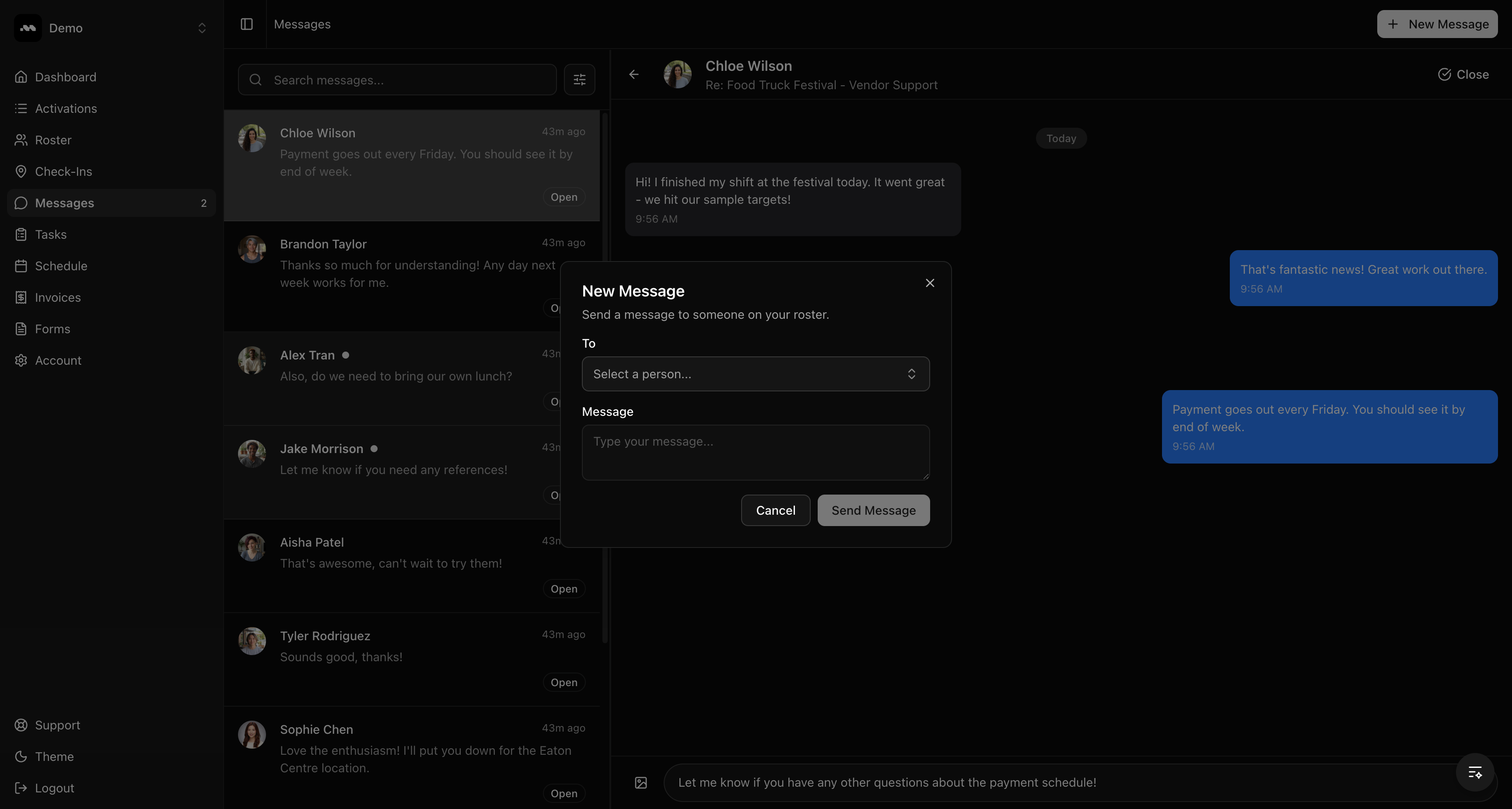 Type a name, email, or phone number in the **To** field. Select the person from the dropdown, write your message, and click **Send Message**.
 You can only message people who are on your roster. If you need to add someone first, go to the Roster page.
## Filter conversations
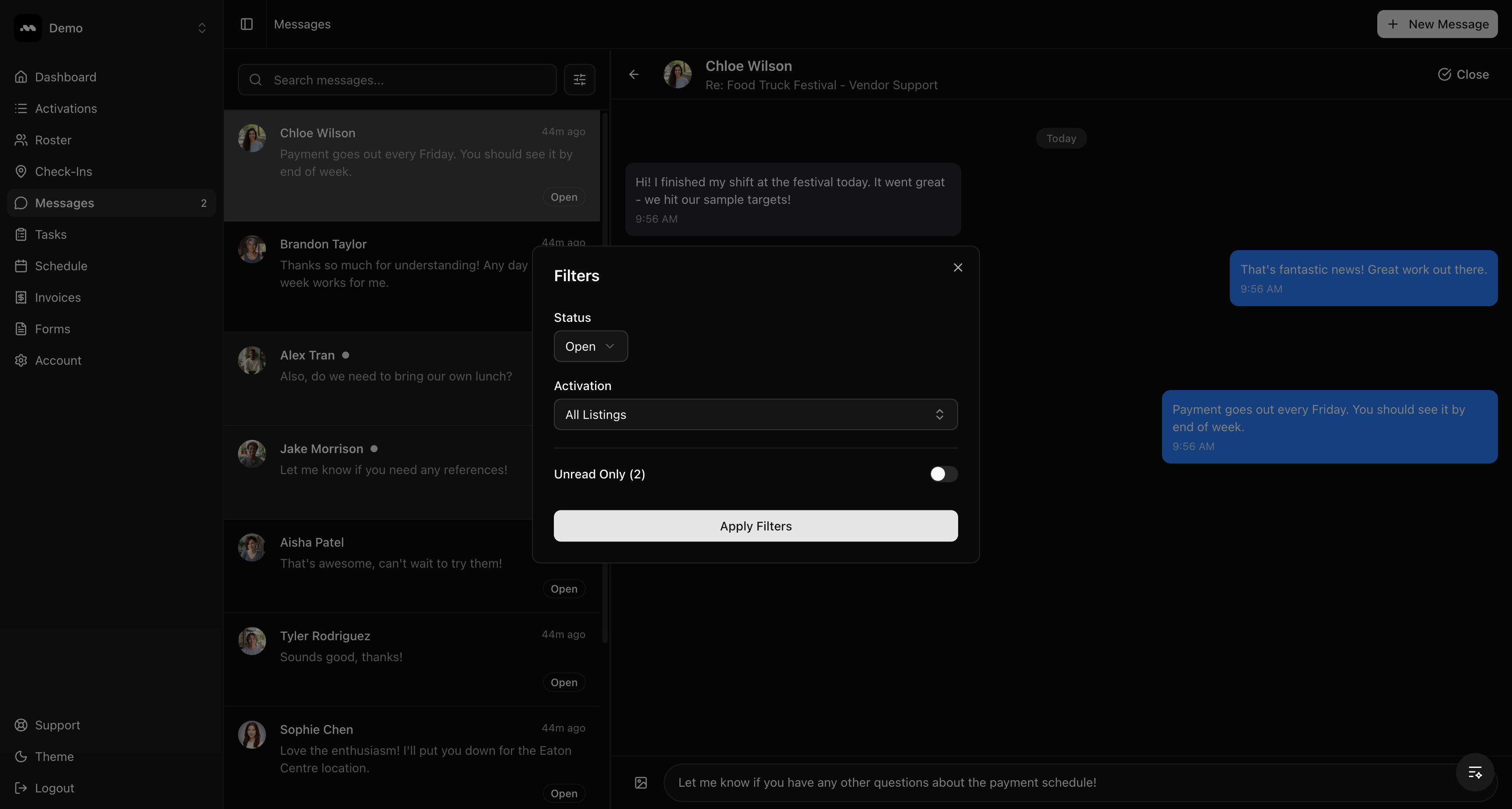
Click the filter icon next to the search bar to open the Filters panel. You can filter by:
* **Status** — Show only Open or Closed conversations
* **Activation** — Show conversations related to a specific activation
* **Unread Only** — Toggle to see only unread conversations
You can only message people who are on your roster. If you need to add someone first, go to the Roster page.
## Filter conversations
Click the filter icon next to the search bar to open the Filters panel. You can filter by:
* **Status** — Show only Open or Closed conversations
* **Activation** — Show conversations related to a specific activation
* **Unread Only** — Toggle to see only unread conversations
 You can also use the search bar to find conversations by name, email, or message content.
## View an ambassador's profile
Click the ambassador's name in the conversation header to open their profile panel on the right. You can see their media portfolio, work experience, education, skills, and certifications without leaving the conversation.
You can also use the search bar to find conversations by name, email, or message content.
## View an ambassador's profile
Click the ambassador's name in the conversation header to open their profile panel on the right. You can see their media portfolio, work experience, education, skills, and certifications without leaving the conversation.
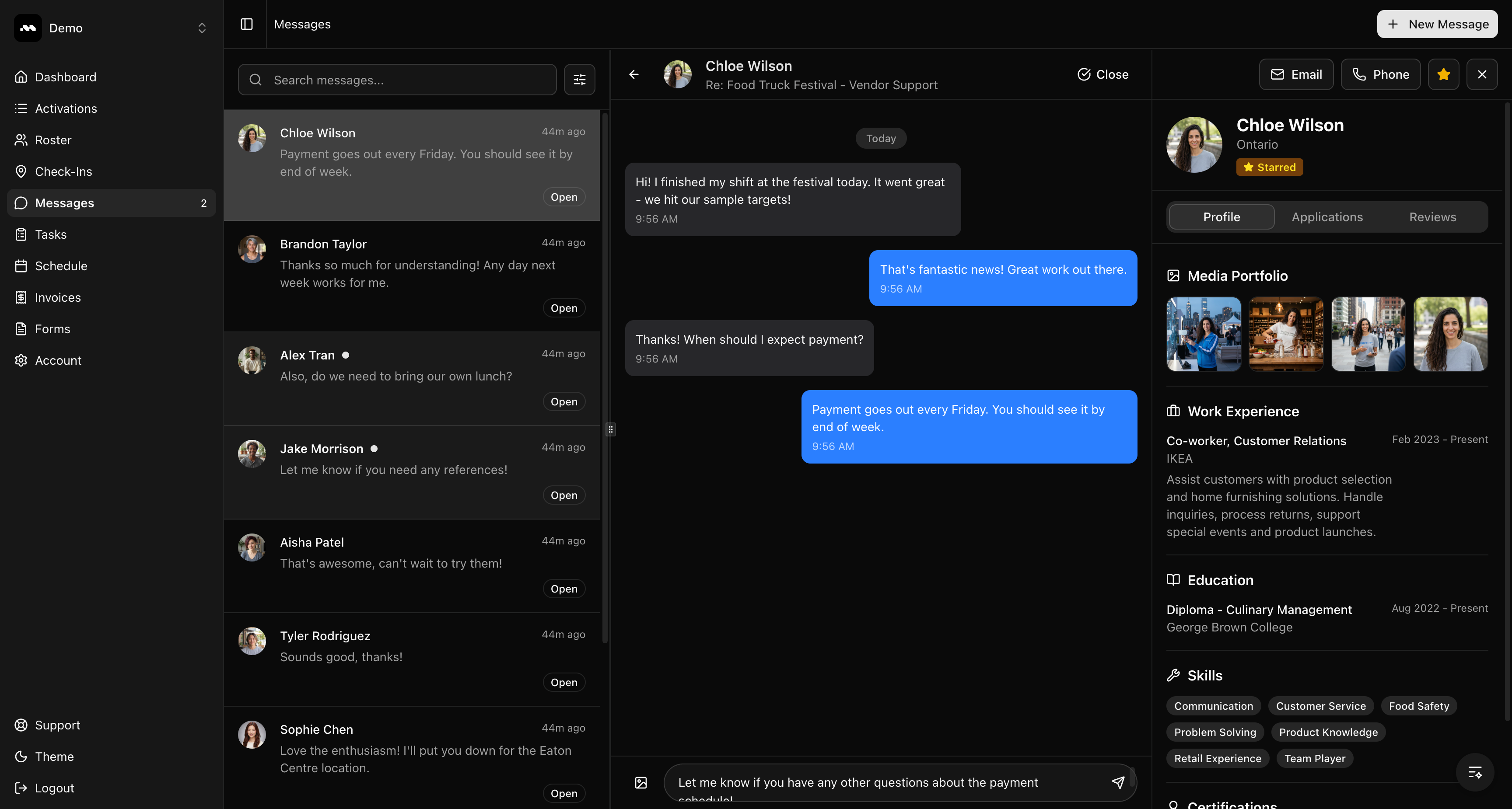 From the profile panel you can also:
* **Email** or **Phone** the ambassador directly
* **Star** them for quick reference
* View their **Applications** and **Reviews** using the tabs
## Close and reopen conversations
Click the **Close** button in the conversation header to mark a conversation as resolved. Closed conversations move to the "Closed" filter view.
To reopen a closed conversation, select it and click **Reopen**. If an ambassador sends a new message to a closed conversation, it reopens automatically.
## Tips
Use the resizable divider between the conversation list and detail panel to adjust the layout to your preference. Your panel size is saved automatically.
The unread count shown next to "Messages" in the sidebar updates in real time, so you always know when new messages arrive.
From the profile panel you can also:
* **Email** or **Phone** the ambassador directly
* **Star** them for quick reference
* View their **Applications** and **Reviews** using the tabs
## Close and reopen conversations
Click the **Close** button in the conversation header to mark a conversation as resolved. Closed conversations move to the "Closed" filter view.
To reopen a closed conversation, select it and click **Reopen**. If an ambassador sends a new message to a closed conversation, it reopens automatically.
## Tips
Use the resizable divider between the conversation list and detail panel to adjust the layout to your preference. Your panel size is saved automatically.
The unread count shown next to "Messages" in the sidebar updates in real time, so you always know when new messages arrive.