> ## Documentation Index
> Fetch the complete documentation index at: https://docs.promo.cv/llms.txt
> Use this file to discover all available pages before exploring further.
# Create a Task
> Send a form to your ambassadors and collect responses by a deadline
Create a task to send a form to selected ambassadors with a deadline. Assigned ambassadors receive an email notification and can submit their responses from their dashboard.
## Prerequisites
* An active agency account with admin access
* At least one published form (go to **Forms** to create one)
## Creating a task
From the **Tasks** page, click the **Create Task** button in the top-right corner. This opens the task creation form.
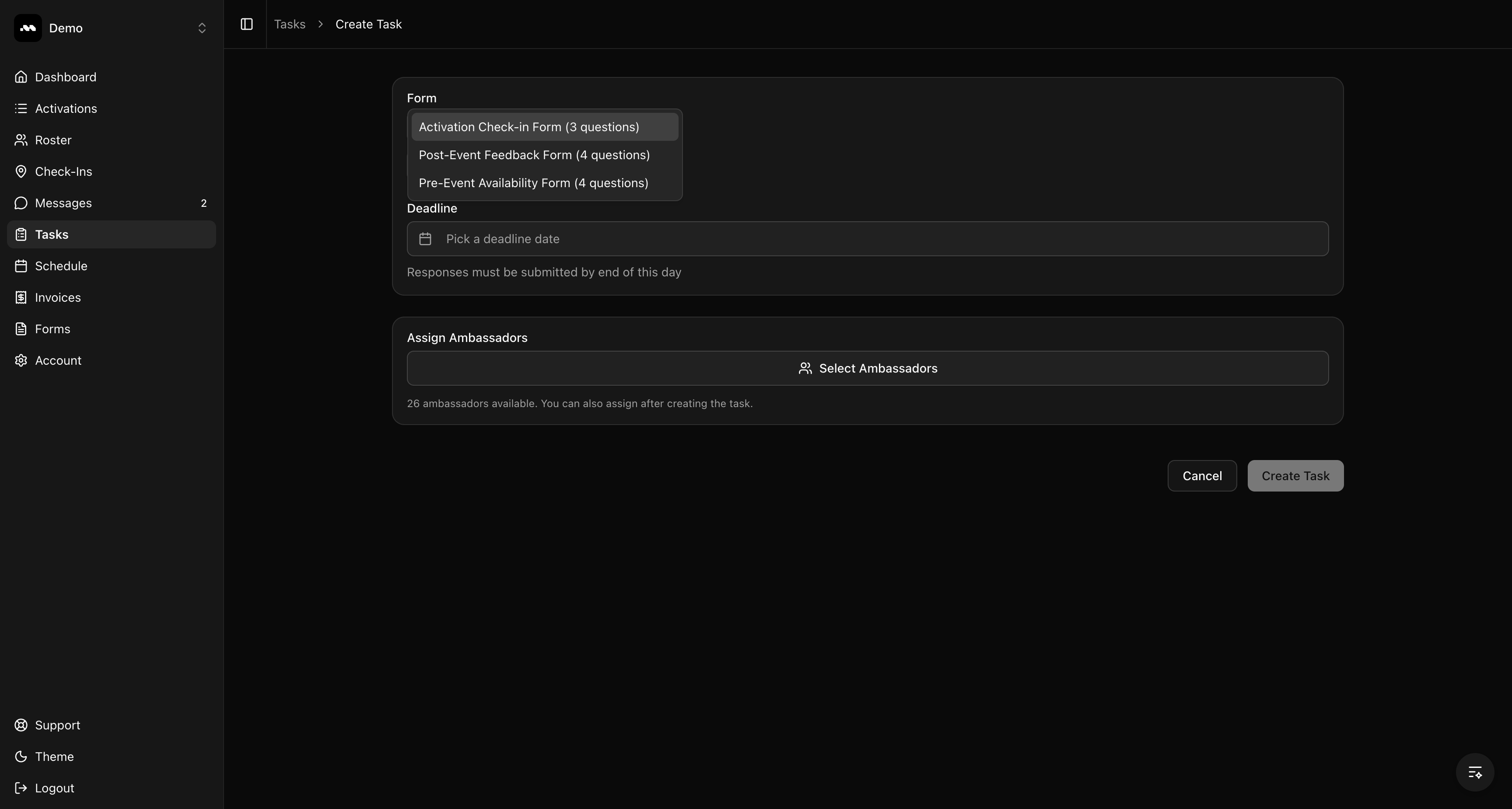
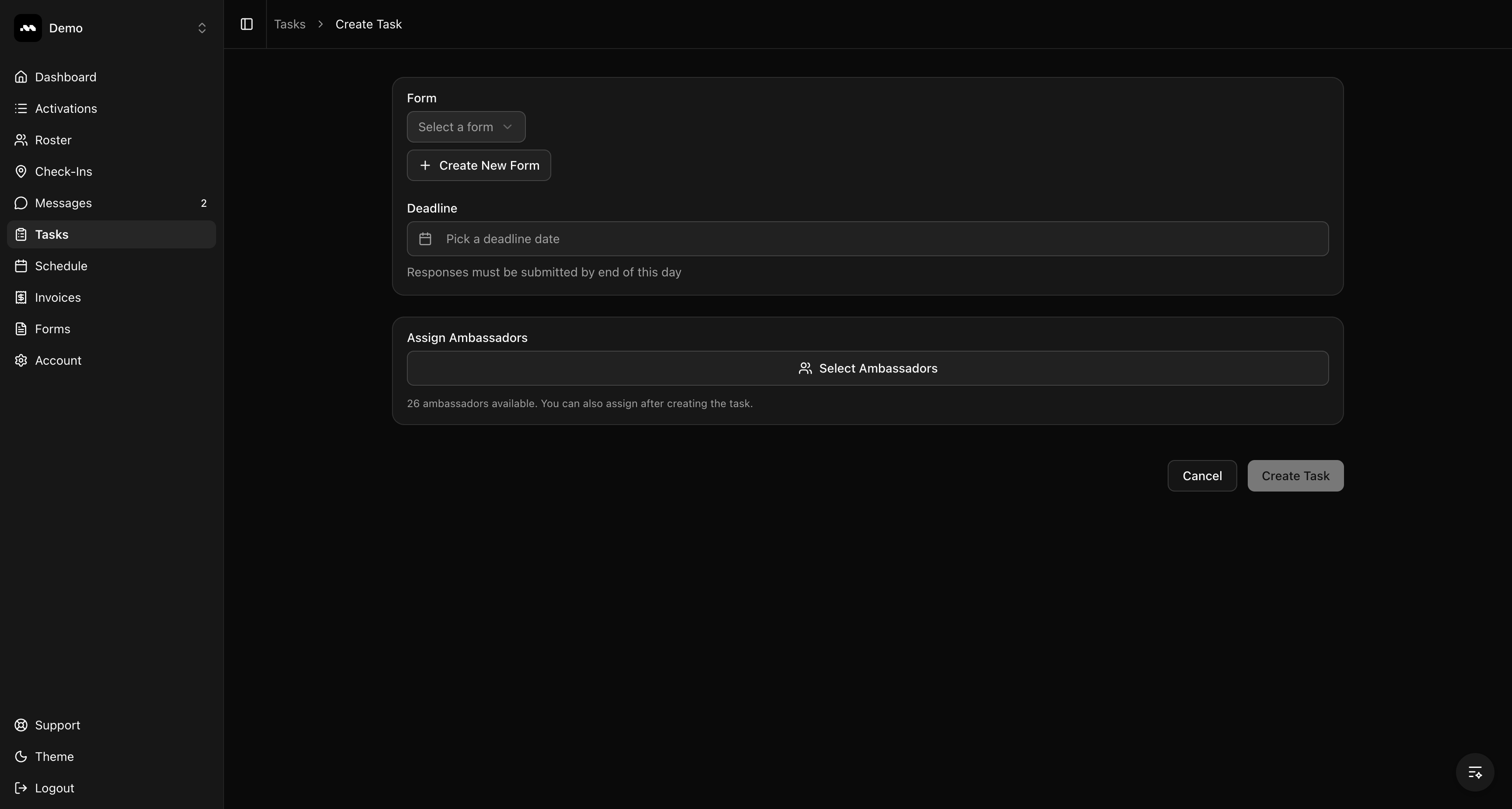 Click the **Form** dropdown and choose one of your published forms. The dropdown shows each form's name and number of questions. After selecting, the task name auto-fills with the form name — you can change it to something more descriptive.
 If you don't have a form yet, click **Create New Form** to build one. You can also click **Edit Form** to modify the selected form before creating the task.
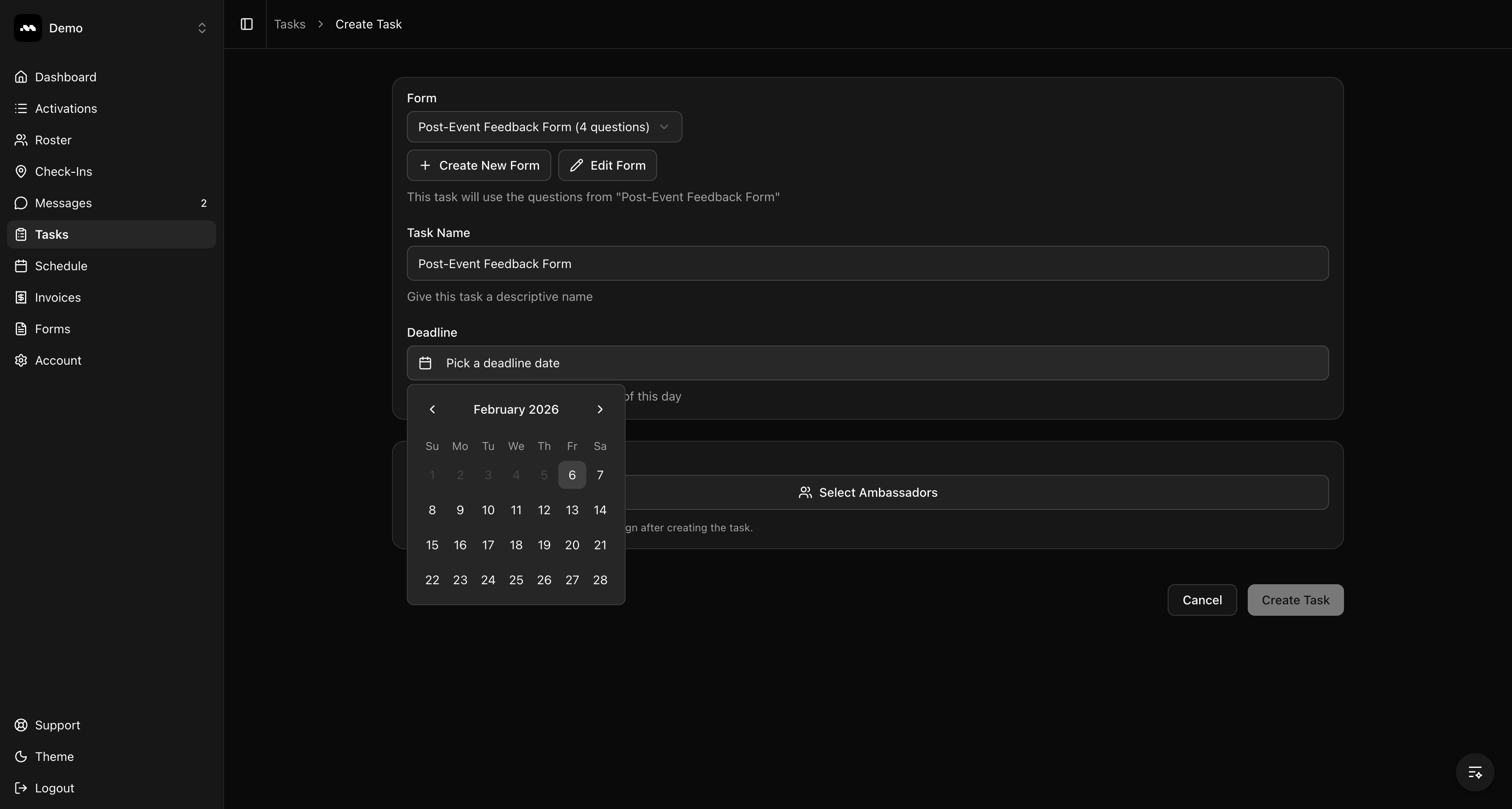
Click the **Deadline** field to open the date picker and select the due date. Ambassadors must submit their responses by end of this day. Past dates are disabled.
If you don't have a form yet, click **Create New Form** to build one. You can also click **Edit Form** to modify the selected form before creating the task.
Click the **Deadline** field to open the date picker and select the due date. Ambassadors must submit their responses by end of this day. Past dates are disabled.
 Click **Select Ambassadors** to open the assignment modal. Browse or search your roster by name, email, or phone. Check the boxes next to the ambassadors you want to assign, or use **Select all** to assign everyone. Click **Done** when finished.
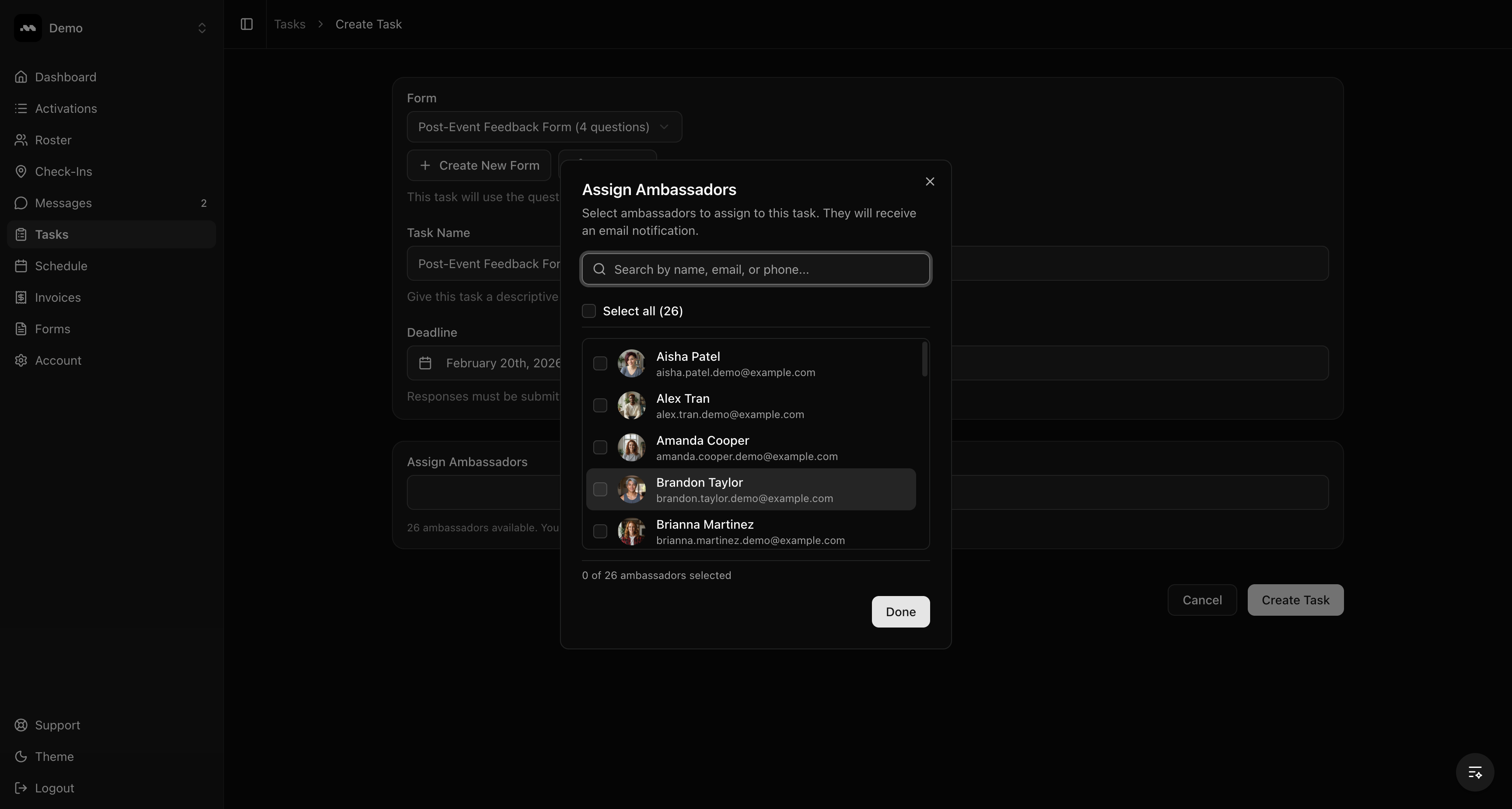 You can skip this step and assign ambassadors later from the task detail page.
Review your selections and click **Create Task**. Assigned ambassadors will receive an email notification with a link to complete the task.
## Tips
The task uses the questions from your selected form at the time of creation. Editing the form later won't change existing tasks.
Give your task a descriptive name (e.g., "Toronto Launch Event Feedback" instead of just "Post-Event Feedback Form") so ambassadors know exactly what it's for.
You can skip this step and assign ambassadors later from the task detail page.
Review your selections and click **Create Task**. Assigned ambassadors will receive an email notification with a link to complete the task.
## Tips
The task uses the questions from your selected form at the time of creation. Editing the form later won't change existing tasks.
Give your task a descriptive name (e.g., "Toronto Launch Event Feedback" instead of just "Post-Event Feedback Form") so ambassadors know exactly what it's for.