> ## Documentation Index
> Fetch the complete documentation index at: https://docs.promo.cv/llms.txt
> Use this file to discover all available pages before exploring further.
# Manage Task Results
> Review responses, track assignments, send reminders, and share results
Once ambassadors start submitting responses, you can review results question-by-question, read AI-generated summaries, manage assignments, and share a results page with your client.
## Viewing task details
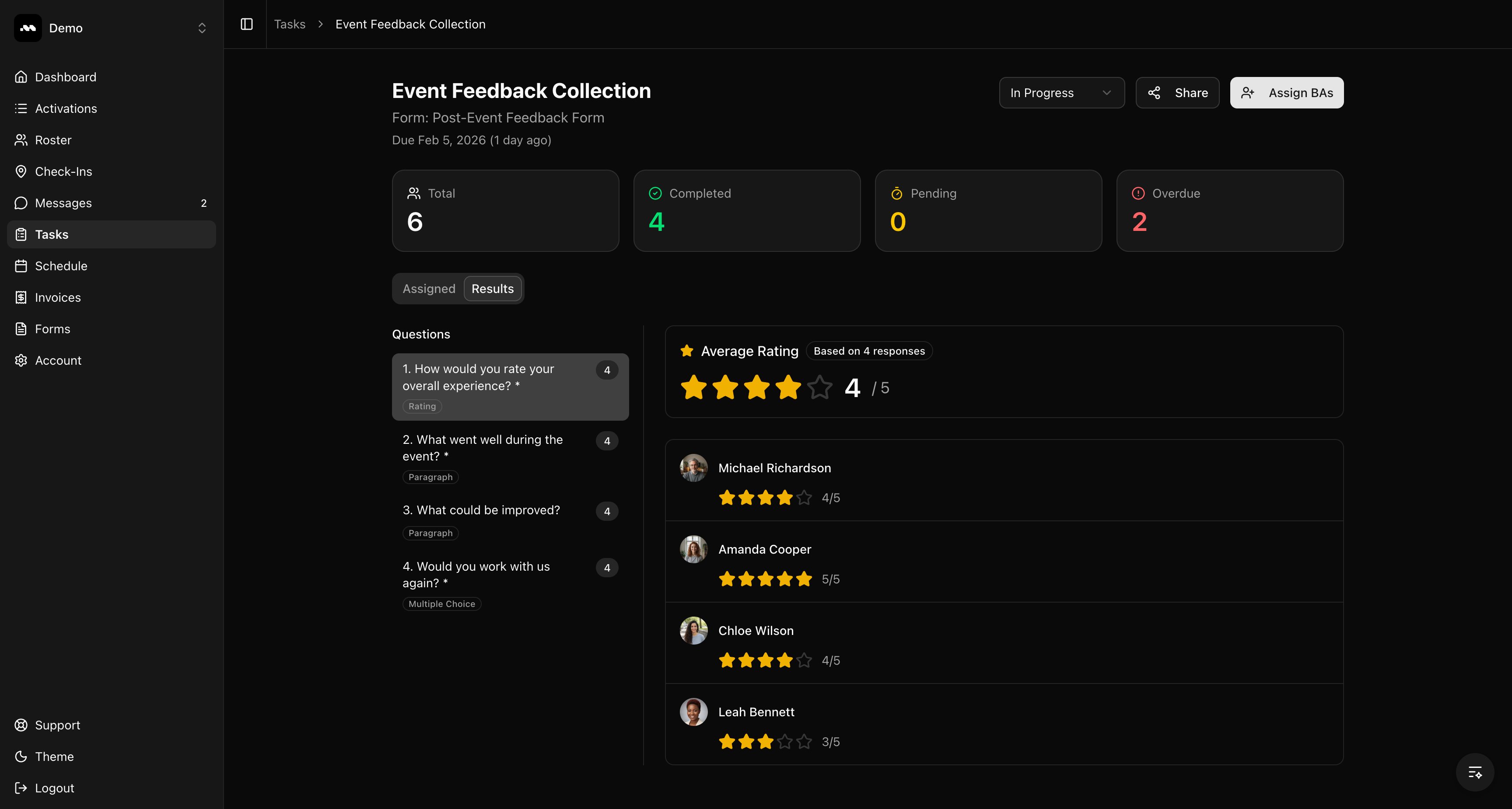
From the **Tasks** page, click on any task to open its detail view. At the top you'll see summary stats — total assignments, completed, pending, and overdue counts.
 ## Reviewing results
The **Results** tab shows a question sidebar on the left. Click any question to see all responses for that question. For rating questions, you'll see the average score and each ambassador's individual rating.
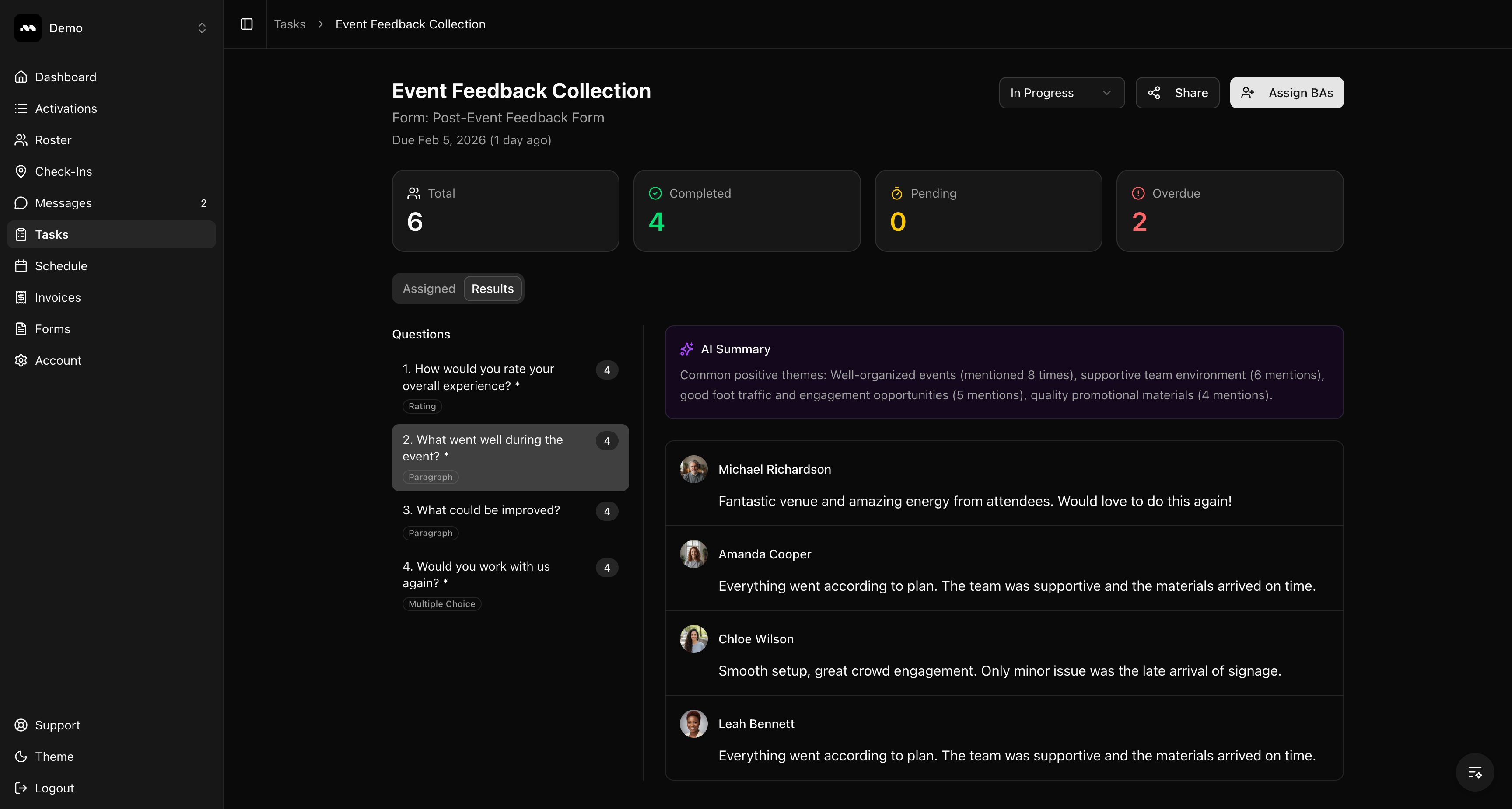
For text and paragraph questions, an **AI Summary** appears at the top highlighting common themes across all responses. Individual responses are listed below.
## Reviewing results
The **Results** tab shows a question sidebar on the left. Click any question to see all responses for that question. For rating questions, you'll see the average score and each ambassador's individual rating.
For text and paragraph questions, an **AI Summary** appears at the top highlighting common themes across all responses. Individual responses are listed below.
 ## Managing assignments
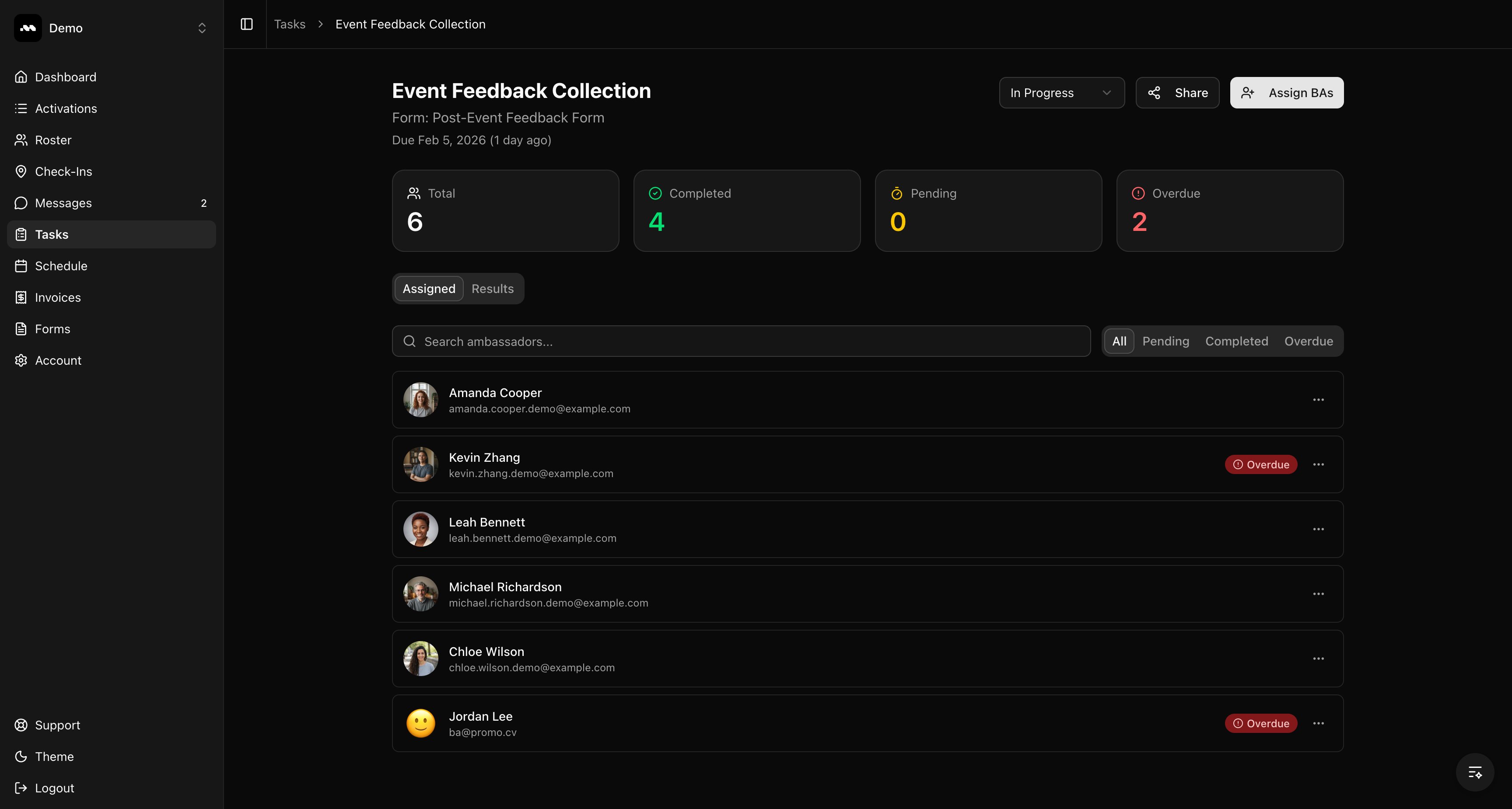
Switch to the **Assigned** tab to see all ambassadors assigned to this task. Use the filter tabs (**All**, **Pending**, **Completed**, **Overdue**) or the search bar to find specific people.
## Managing assignments
Switch to the **Assigned** tab to see all ambassadors assigned to this task. Use the filter tabs (**All**, **Pending**, **Completed**, **Overdue**) or the search bar to find specific people.
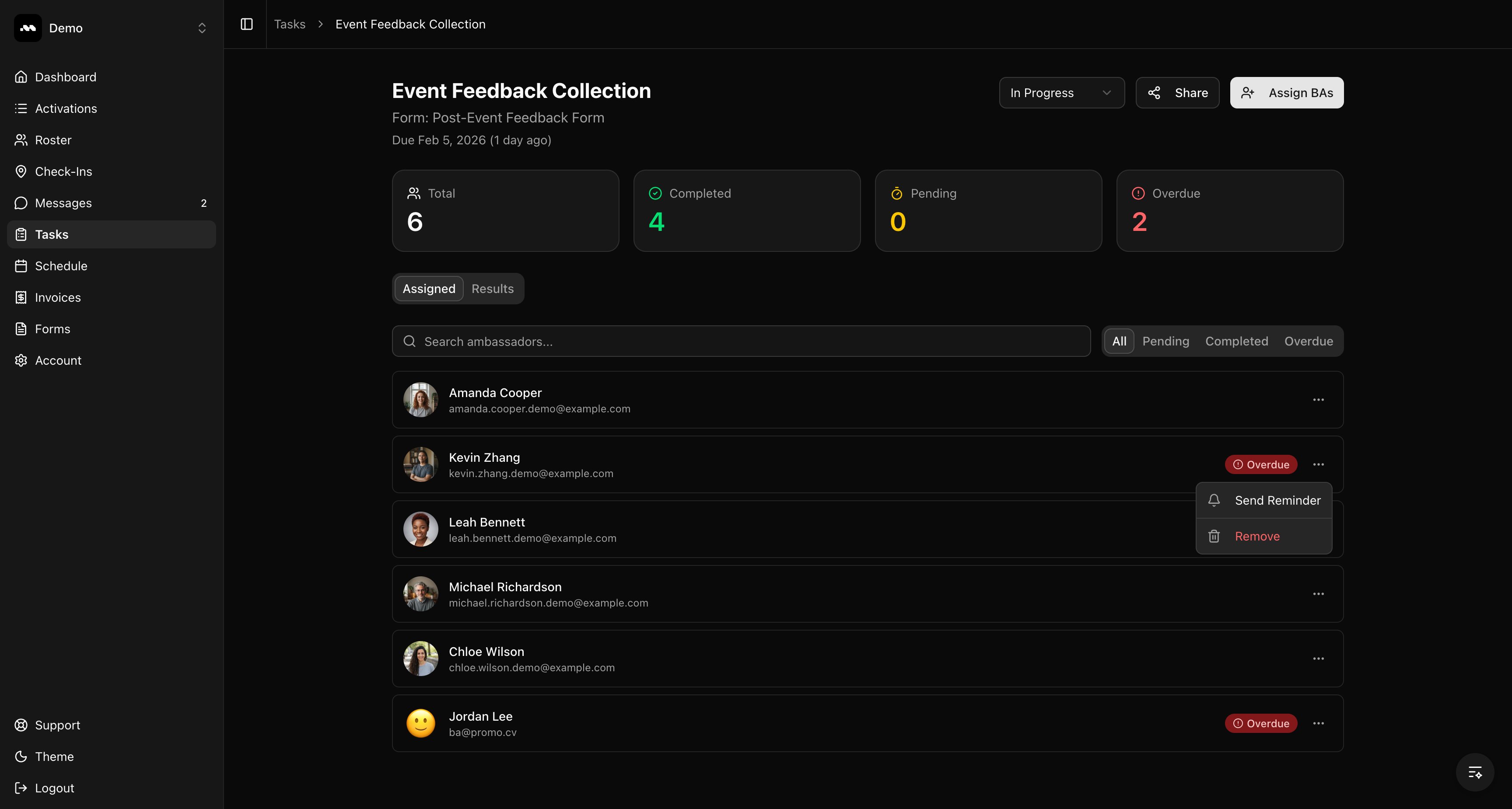
 Click the three-dot menu next to any ambassador to **Send Reminder** (for overdue or pending) or **Remove** them from the task.
 Reminders can only be sent once every 24 hours per ambassador.
## Sharing results
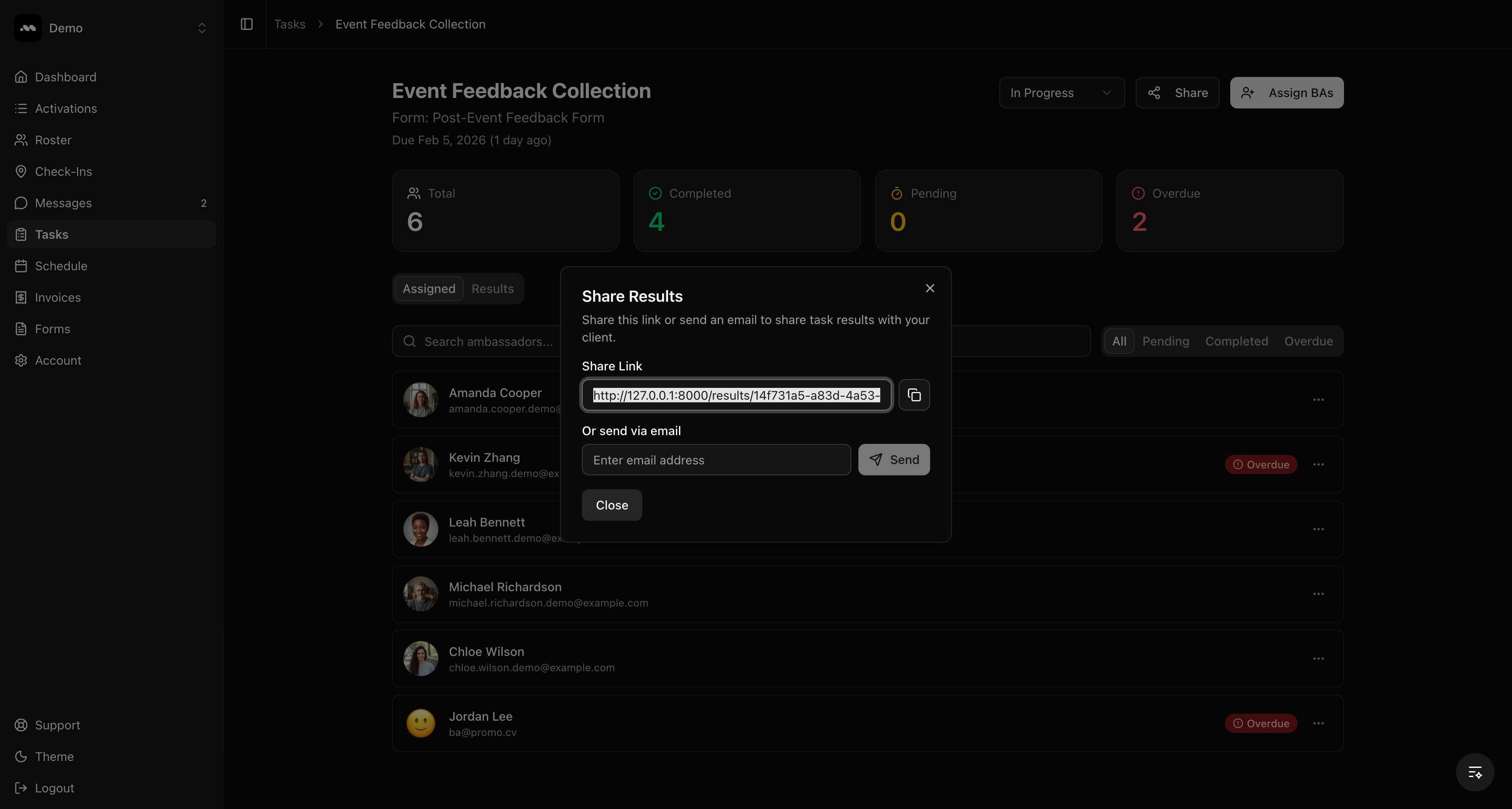
Click the **Share** button in the task header to open the share modal. Copy the public link or enter an email address to send it directly. The public results page shows anonymized responses (first name and last initial only).
Reminders can only be sent once every 24 hours per ambassador.
## Sharing results
Click the **Share** button in the task header to open the share modal. Copy the public link or enter an email address to send it directly. The public results page shows anonymized responses (first name and last initial only).
 ## Tips
Use the **status dropdown** in the task header to manually mark a task as Completed or Cancelled, regardless of individual assignment statuses.
Click **Assign BAs** in the header to add more ambassadors to an existing task at any time.
The public share link does not require login. Anyone with the link can view the results page.
## Tips
Use the **status dropdown** in the task header to manually mark a task as Completed or Cancelled, regardless of individual assignment statuses.
Click **Assign BAs** in the header to add more ambassadors to an existing task at any time.
The public share link does not require login. Anyone with the link can view the results page.