> ## Documentation Index
> Fetch the complete documentation index at: https://docs.promo.cv/llms.txt
> Use this file to discover all available pages before exploring further.
# Tasks Overview
> Understand how tasks work and navigate your task list
Tasks let you send forms to your roster and collect structured responses — feedback, availability, photo uploads, and more. Each task is linked to a published form and has a deadline for submissions.
## Prerequisites
* An active agency account with admin access
* At least one [published form](/agencies/forms) in your account
## Viewing your tasks
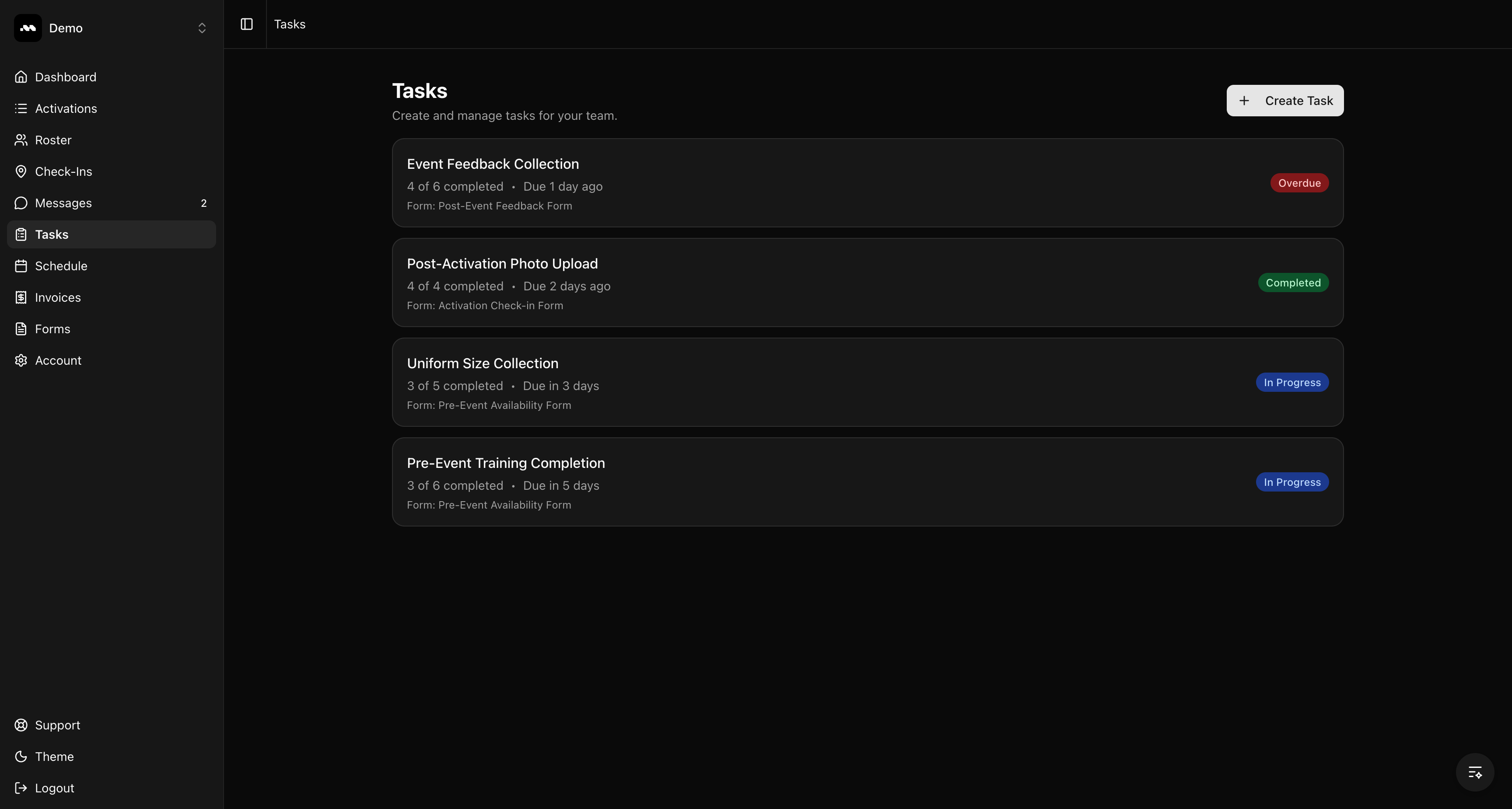
Click **Tasks** in the sidebar to see all your tasks. Each task shows its name, completion progress, deadline, and current status.
 ## Understanding task statuses
Each task displays a status badge based on its deadline and completion:
| Status | Meaning |
| --------------- | -------------------------------------------------------------- |
| **In Progress** | The deadline hasn't passed and responses are still coming in |
| **Completed** | All assigned ambassadors have submitted their responses |
| **Overdue** | The deadline has passed and some ambassadors haven't responded |
| **Cancelled** | The task was manually cancelled |
## Tips
Click on any task to view its details, manage assignments, and review responses.
Only team members with admin access can create new tasks. All team members can view task results.
## Understanding task statuses
Each task displays a status badge based on its deadline and completion:
| Status | Meaning |
| --------------- | -------------------------------------------------------------- |
| **In Progress** | The deadline hasn't passed and responses are still coming in |
| **Completed** | All assigned ambassadors have submitted their responses |
| **Overdue** | The deadline has passed and some ambassadors haven't responded |
| **Cancelled** | The task was manually cancelled |
## Tips
Click on any task to view its details, manage assignments, and review responses.
Only team members with admin access can create new tasks. All team members can view task results.