

Prerequisites
- An active agency account with access to the dashboard
Creating a form
1
Navigate to the Forms page
From your agency dashboard, click Forms in the sidebar. You’ll see a list of all your existing forms, each showing the form name, description, question count, and creation date.Click the Create Form button in the top-right corner.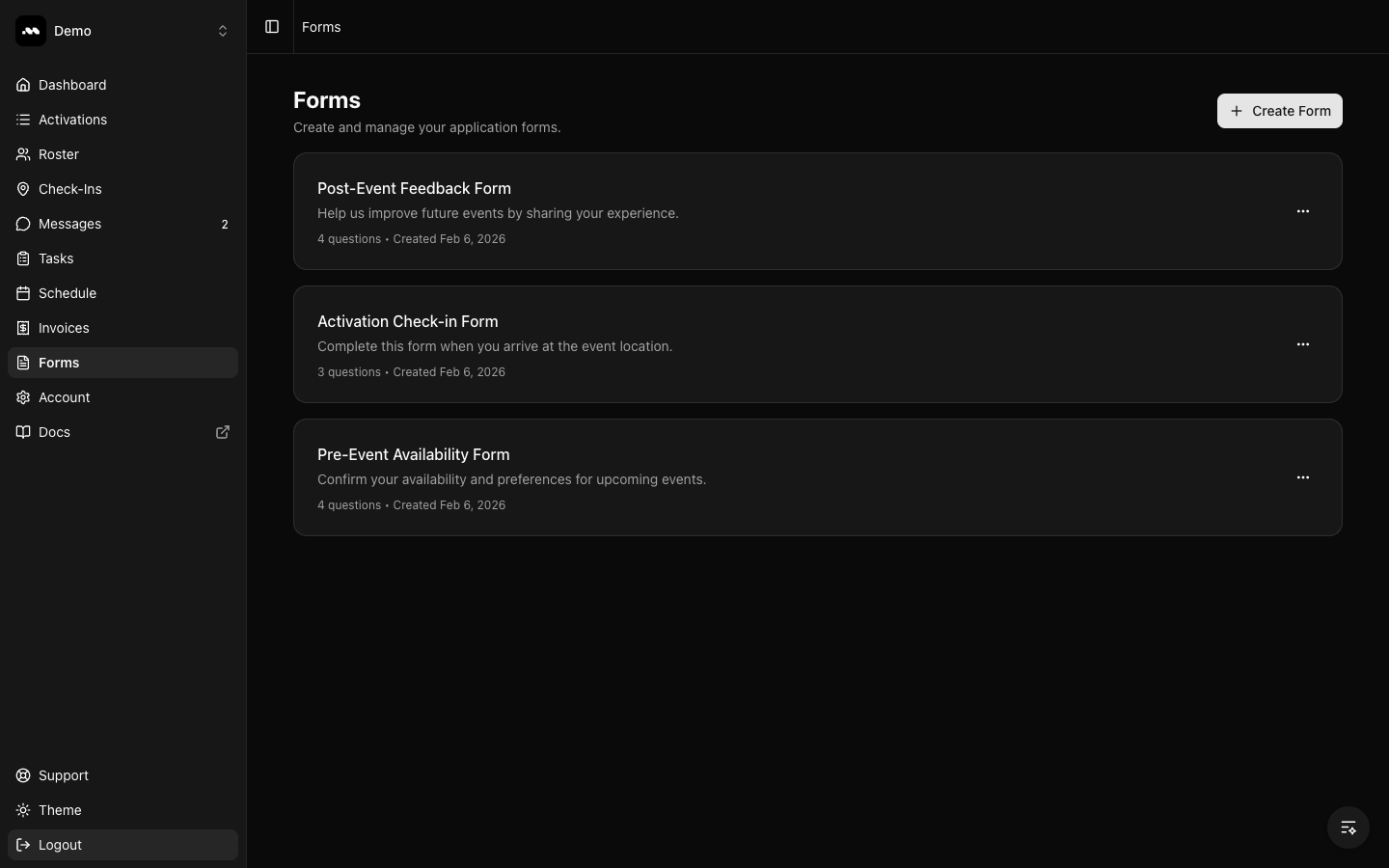
2
Enter form details
On the Create Form page, fill in the Form Name (required) and an optional Description. The name helps you identify the form when attaching it to tasks later.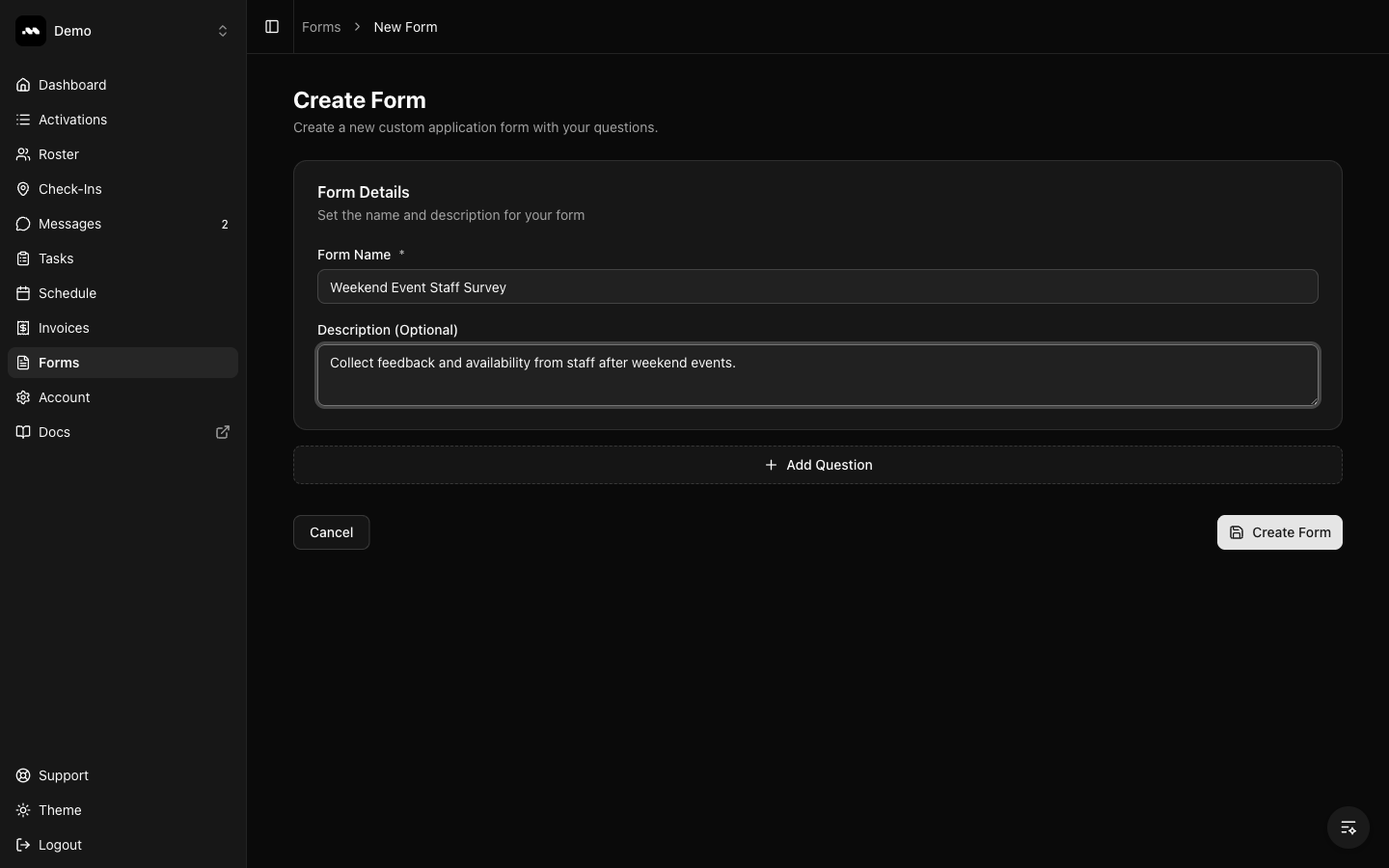
3
Add a question
Click + Add Question to add your first question. Each question has: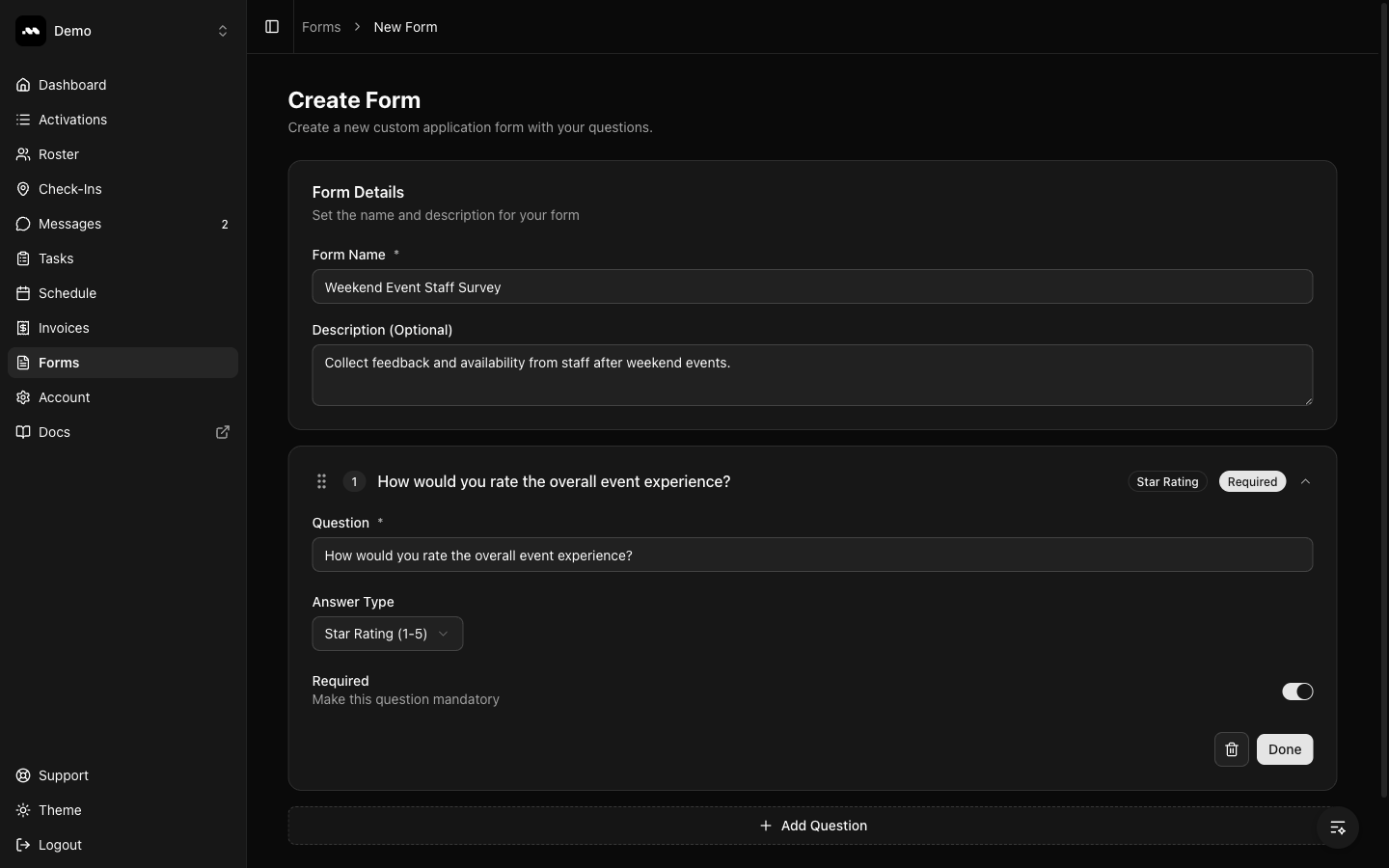
- Question text — The question ambassadors will see
- Answer Type — Choose from Short Text, Paragraph, Multiple Choice (Radio), Multiple Choice (Checkbox), Star Rating (1-5), or File Upload
- Required toggle — Make the question mandatory or optional
4
Add multiple choice options
When you select Multiple Choice (Radio) or Multiple Choice (Checkbox) as the answer type, an Options section appears. Type each option and click + Add Option to add more.Radio questions allow ambassadors to select one answer. Checkbox questions allow multiple selections.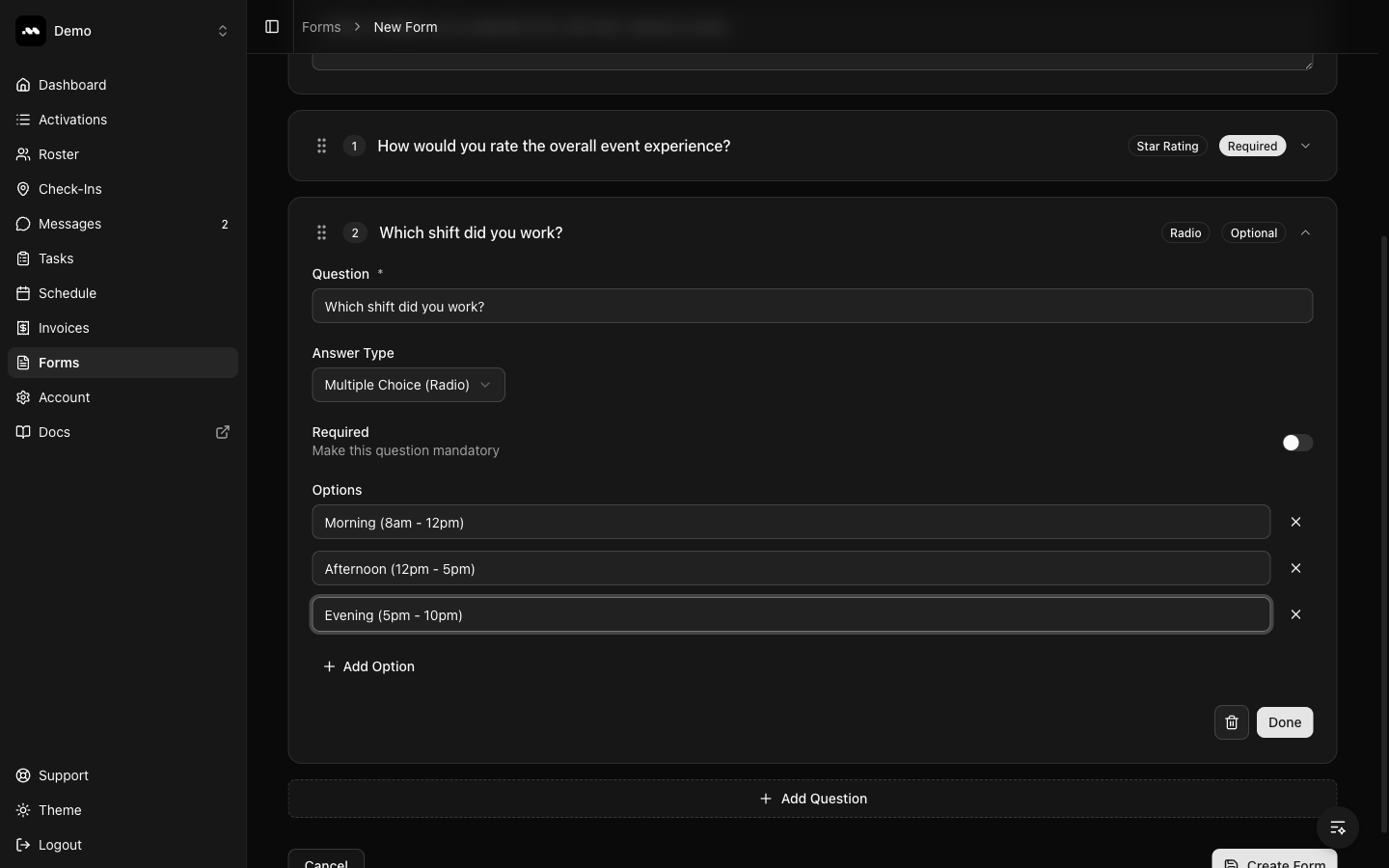
5
Save the form
Once you’ve added all your questions, click Create Form. You’ll be redirected to the Forms list where your new form appears at the top.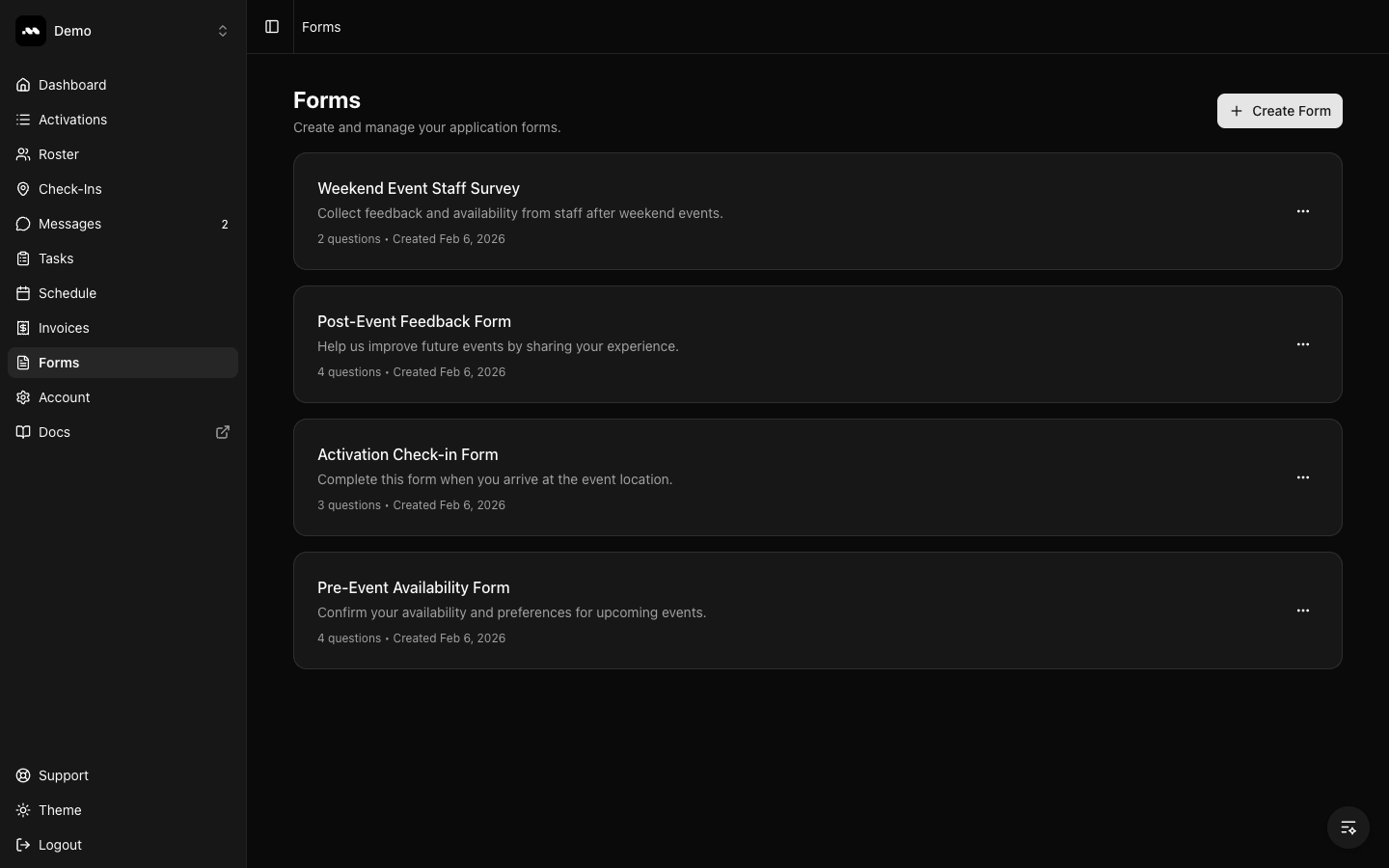
Managing forms
1
Edit a form
Click any form card to open the form builder. You can modify the form name, description, and all questions. Use the drag handles to reorder questions. Click Save Form when done.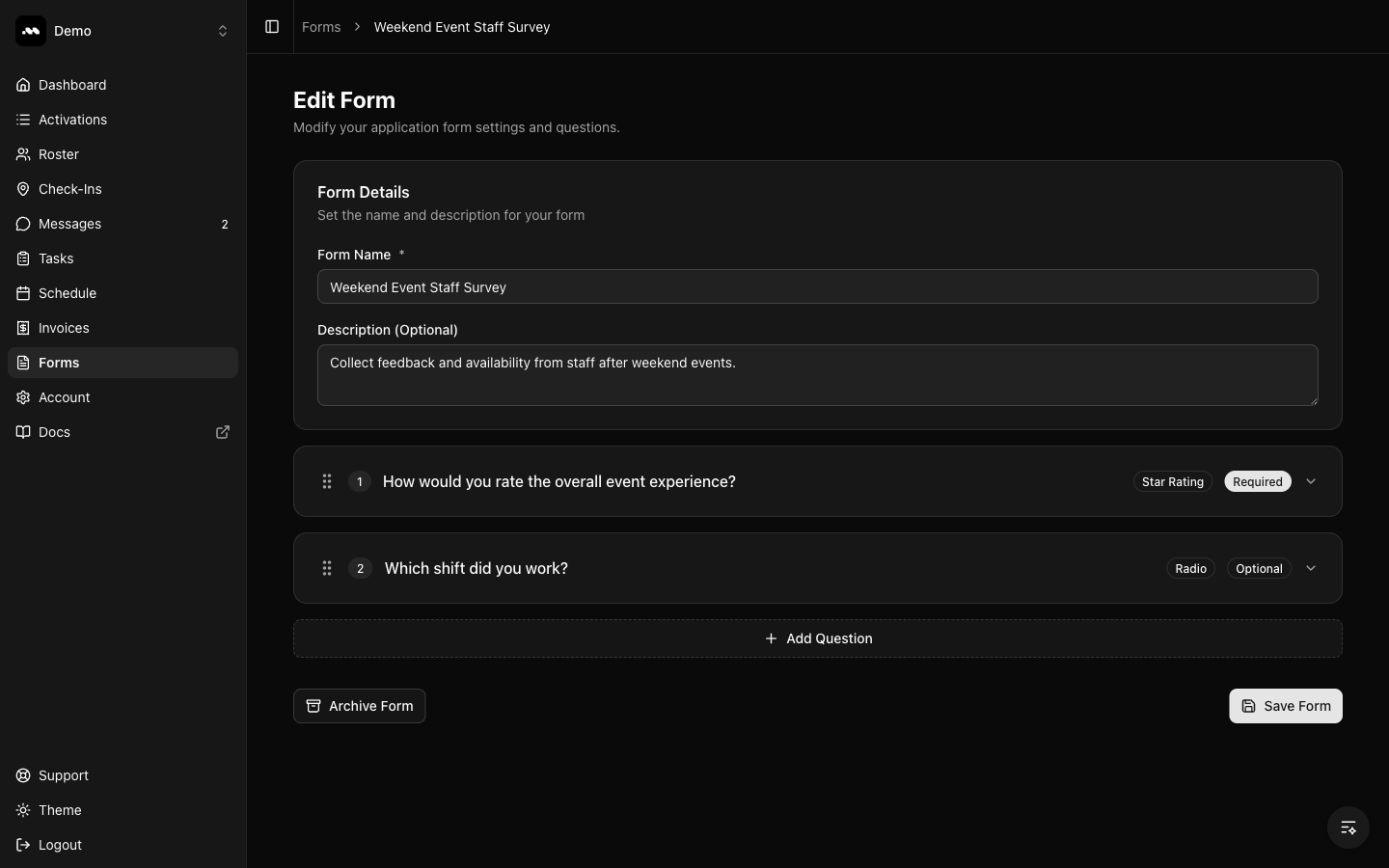
2
Duplicate or archive a form
Click the three-dot menu on any form card to access quick actions: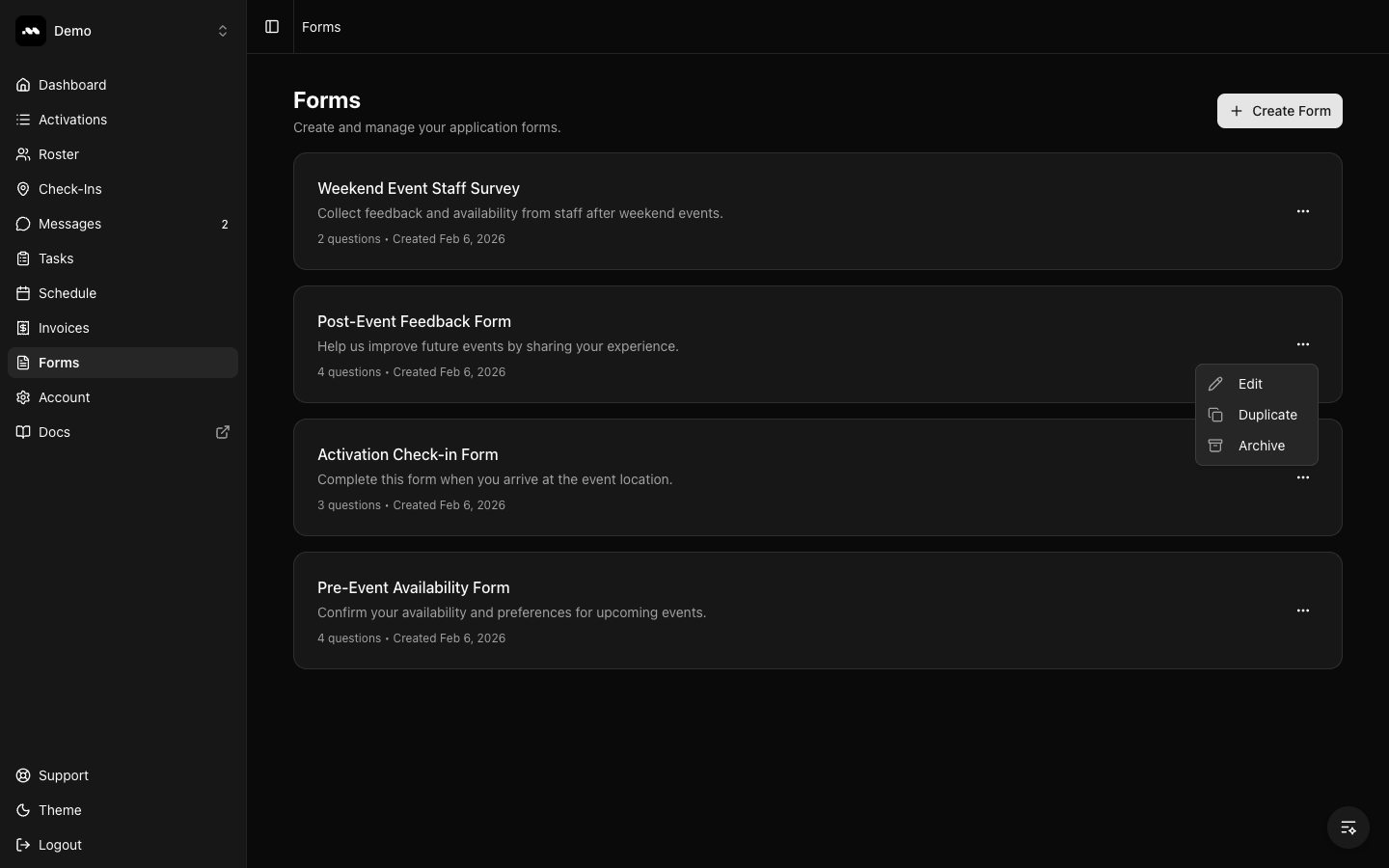
- Edit — Open the form builder
- Duplicate — Create a copy of the form with all its questions
- Archive — Remove the form from your active list
Question types reference
Duplicating a form copies all questions and options, making it easy to create variations of existing forms without starting from scratch.