

Prerequisites
- An active agency account with admin access
- At least one published form (go to Forms to create one)
Creating a task
1
Click Create Task
From the Tasks page, click the Create Task button in the top-right corner. This opens the task creation form.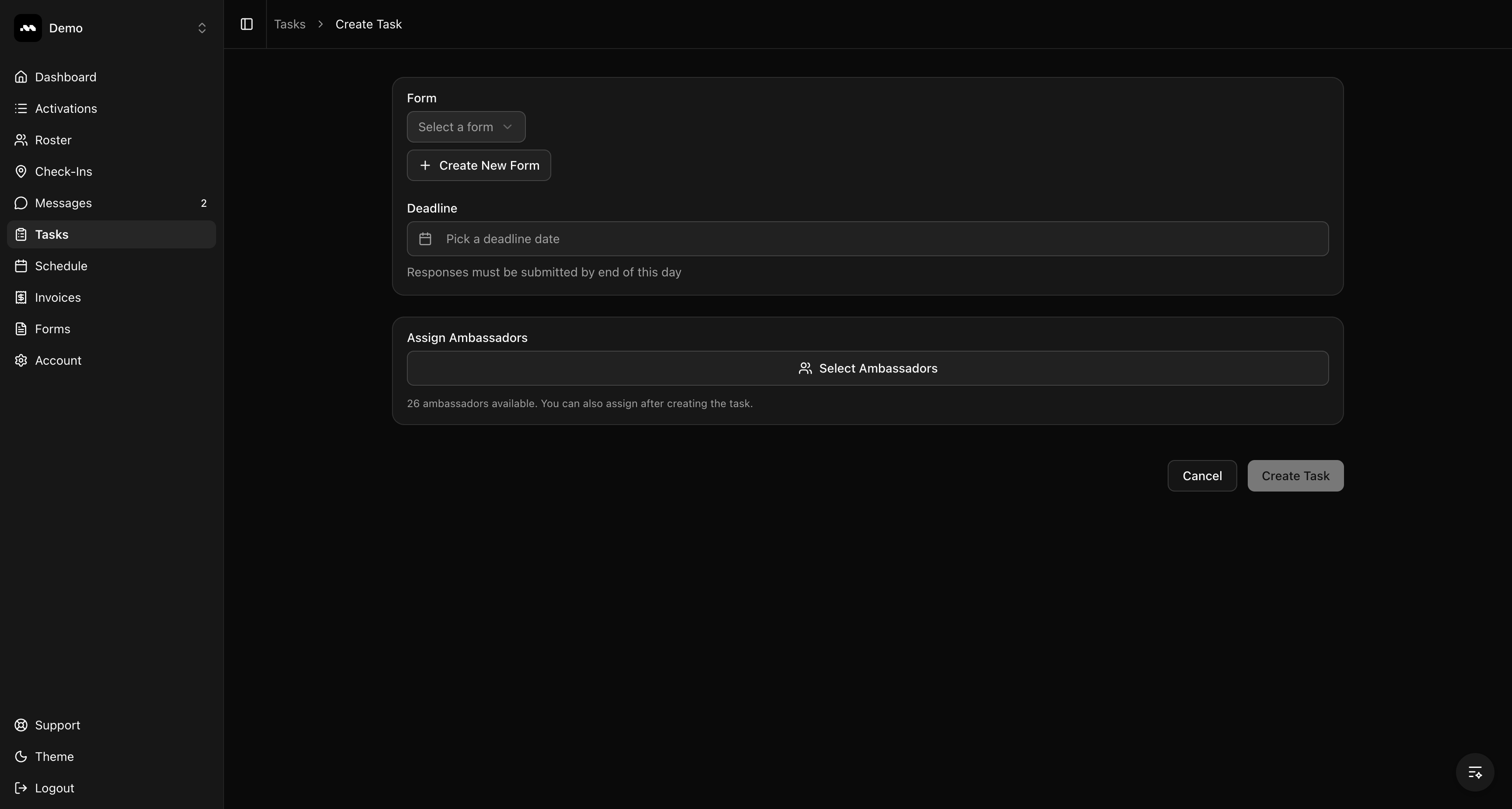
2
Select a form
Click the Form dropdown and choose one of your published forms. The dropdown shows each form’s name and number of questions. After selecting, the task name auto-fills with the form name — you can change it to something more descriptive.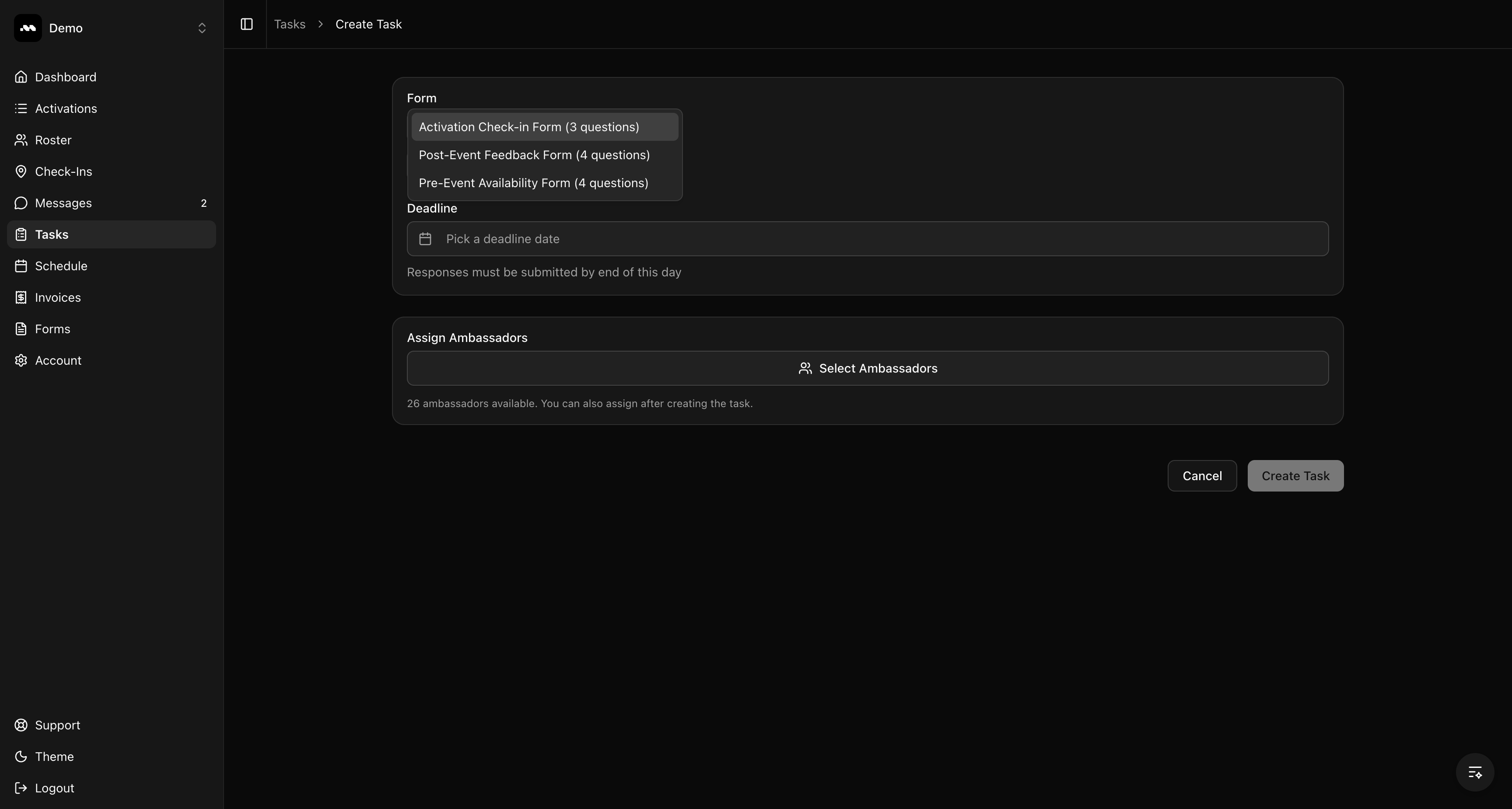
3
Set a deadline
Click the Deadline field to open the date picker and select the due date. Ambassadors must submit their responses by end of this day. Past dates are disabled.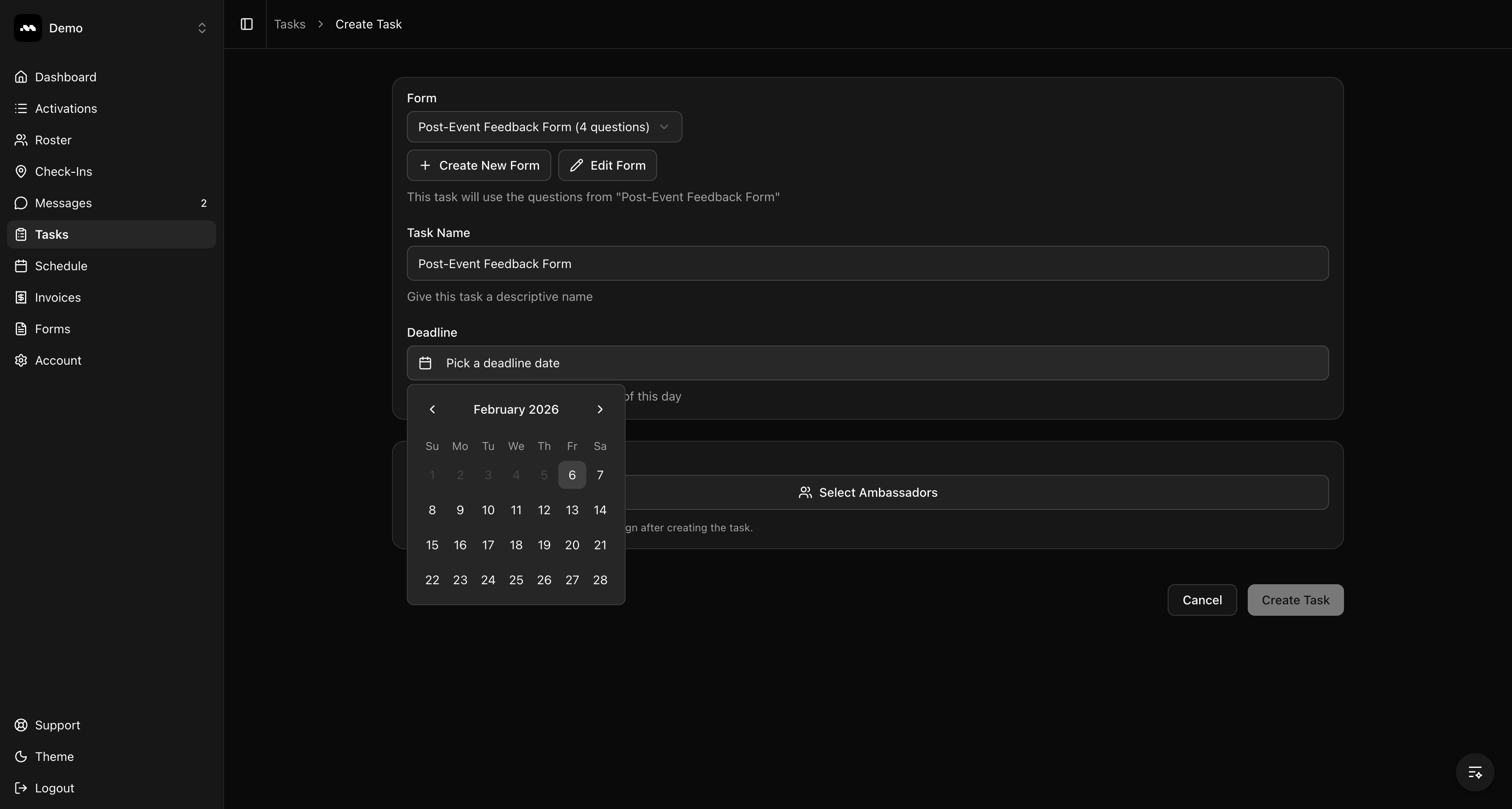
4
Assign ambassadors
Click Select Ambassadors to open the assignment modal. Browse or search your roster by name, email, or phone. Check the boxes next to the ambassadors you want to assign, or use Select all to assign everyone. Click Done when finished.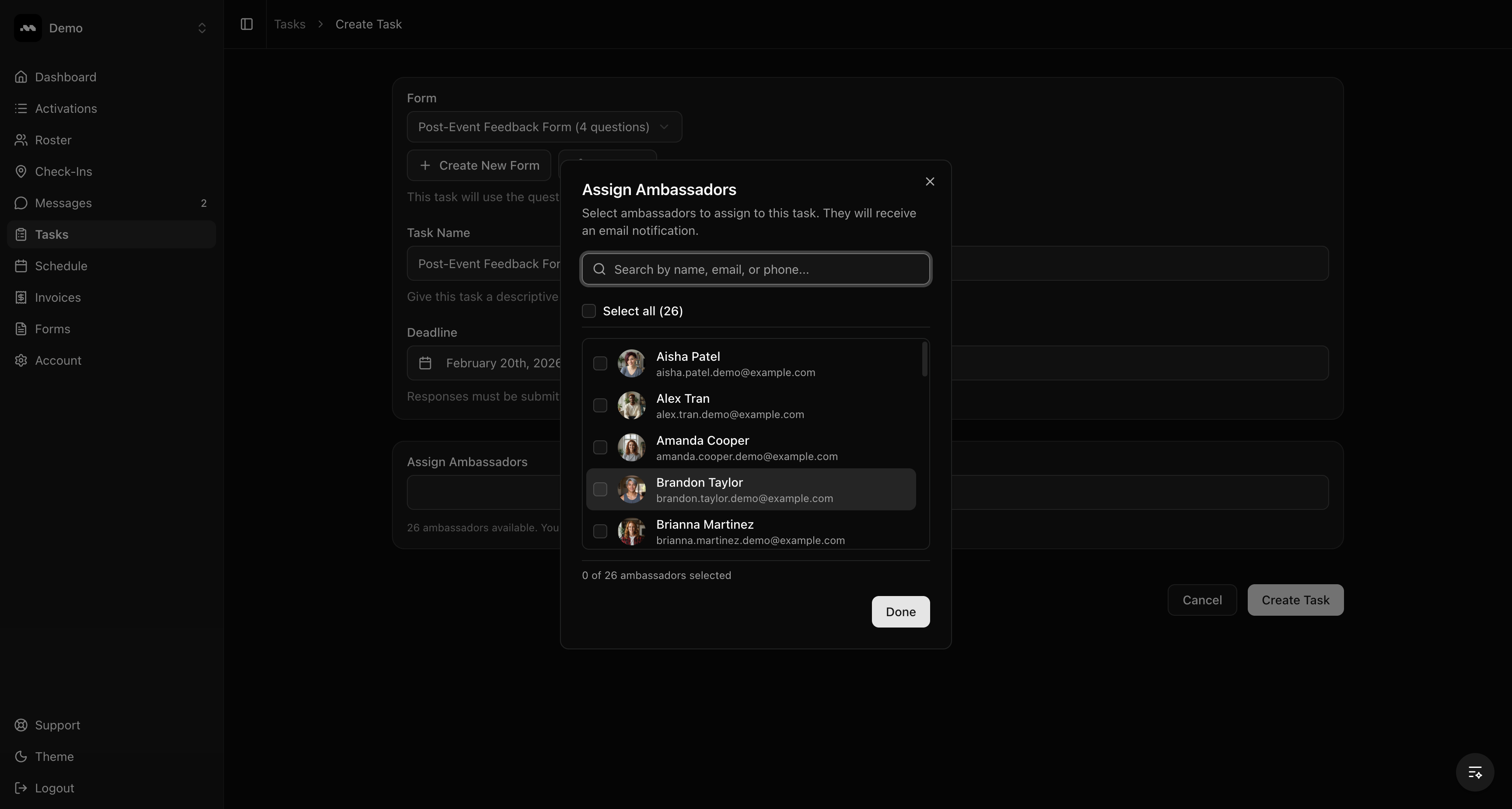
5
Create the task
Review your selections and click Create Task. Assigned ambassadors will receive an email notification with a link to complete the task.
Tips
The task uses the questions from your selected form at the time of creation. Editing the form later won’t change existing tasks.