

Prerequisites
- An active agency account on Promo
- At least one published activation (for the invite link method)
Navigate to your roster
Click Roster in the sidebar to open your talent directory. You’ll see all your current brand ambassadors displayed as cards with their photos, names, and location.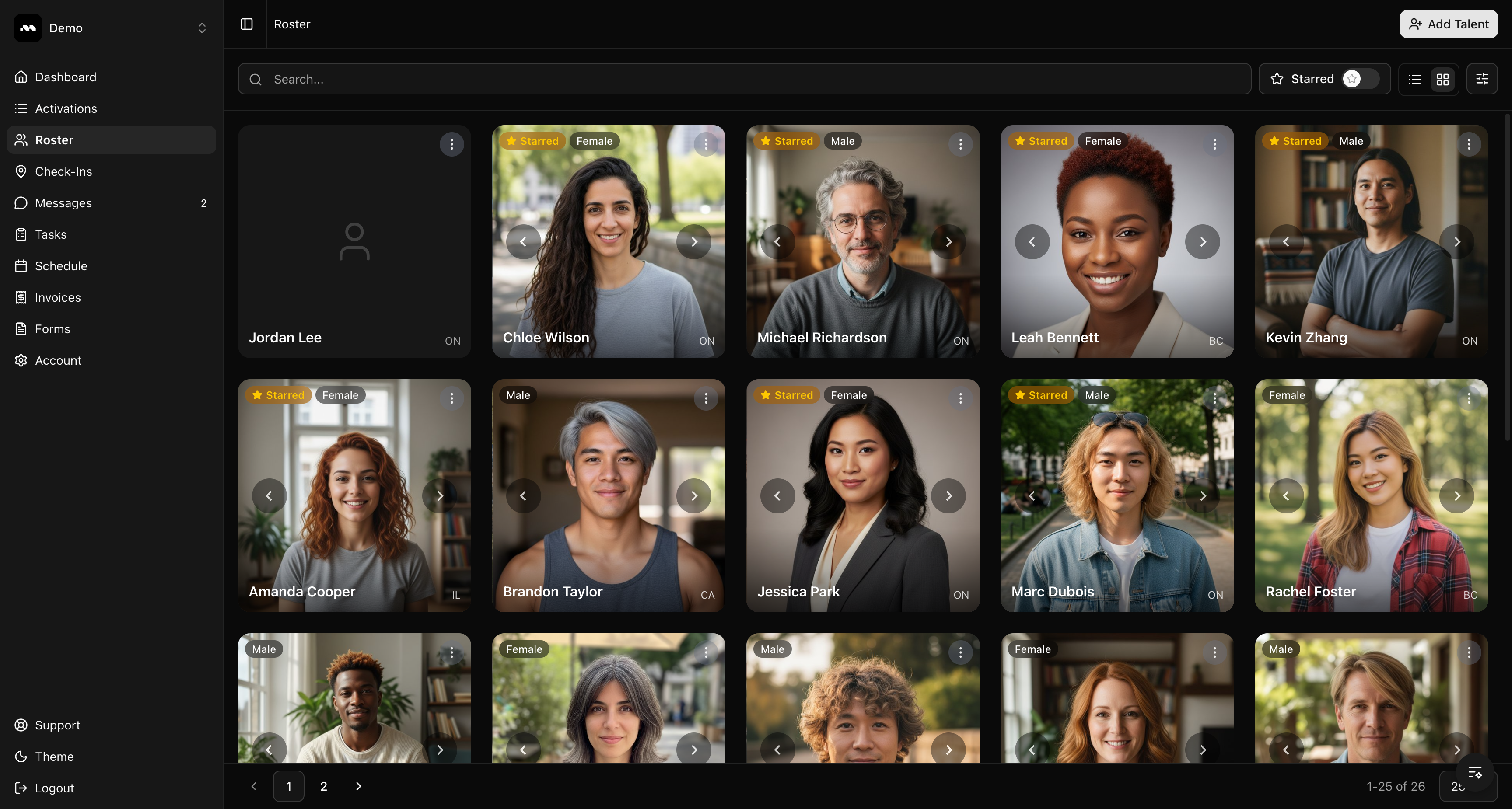
Open the Add Talent modal
Click the Add Talent button in the top-right corner. This opens a modal with four methods for adding ambassadors to your roster.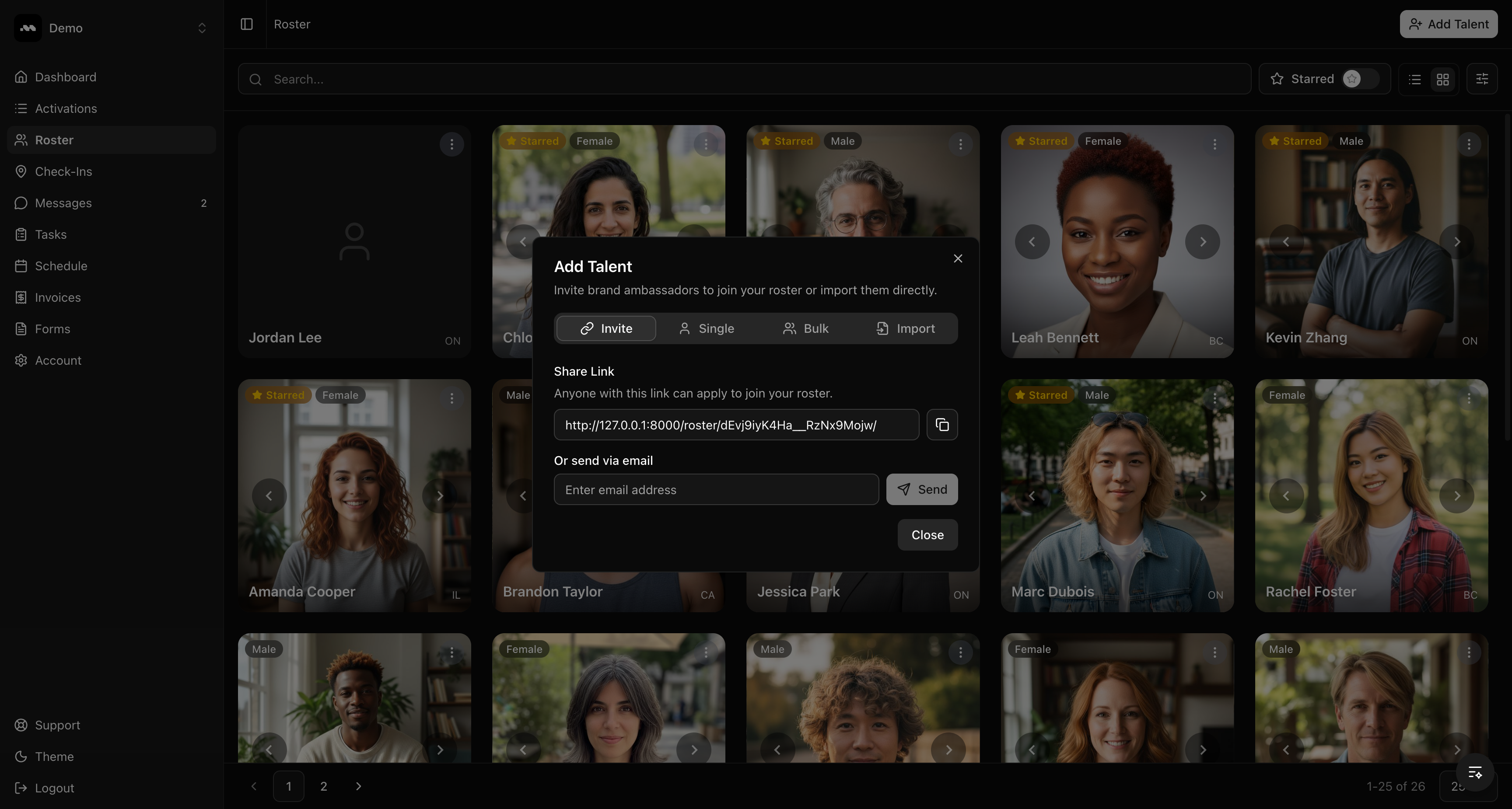
Method 1: Share an invite link
The Invite tab is the simplest way to grow your roster. You get two options:- Share Link — Copy your unique roster invite link and share it with ambassadors via text, social media, or any messaging platform. Anyone with this link can apply to join your roster.
- Send via email — Enter an email address and click Send to email the invite directly from Promo.
Method 2: Add a single ambassador
Switch to the Single tab to manually add one person at a time. Fill in their basic details:- First Name and Last Name (required)
- Email (required)
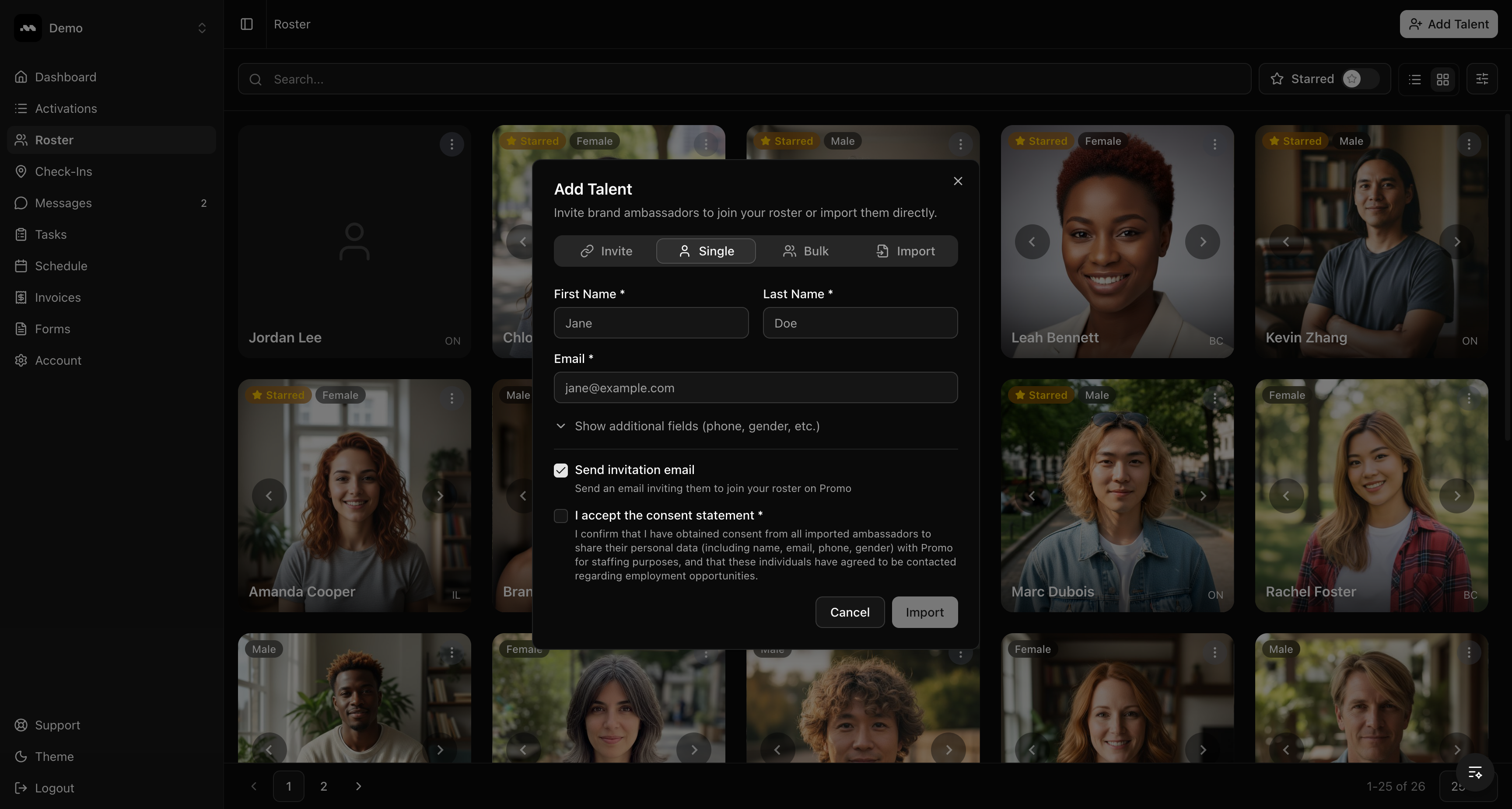
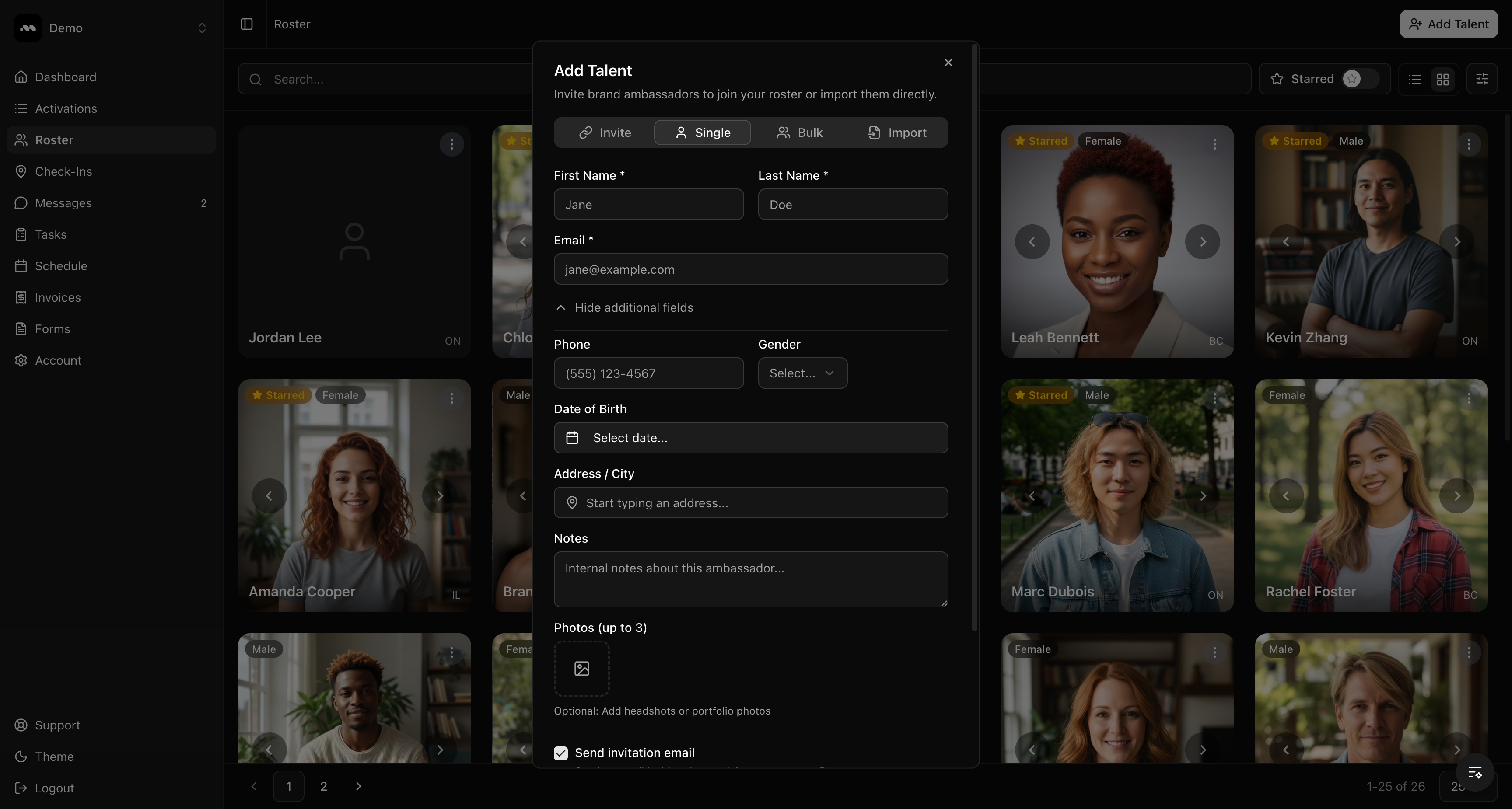
If the email matches an existing Promo account, the ambassador is automatically linked to your roster. Otherwise, they’re added to your private roster as a pending entry.
Method 3: Bulk CSV upload
Switch to the Bulk tab to import multiple ambassadors at once from a CSV file.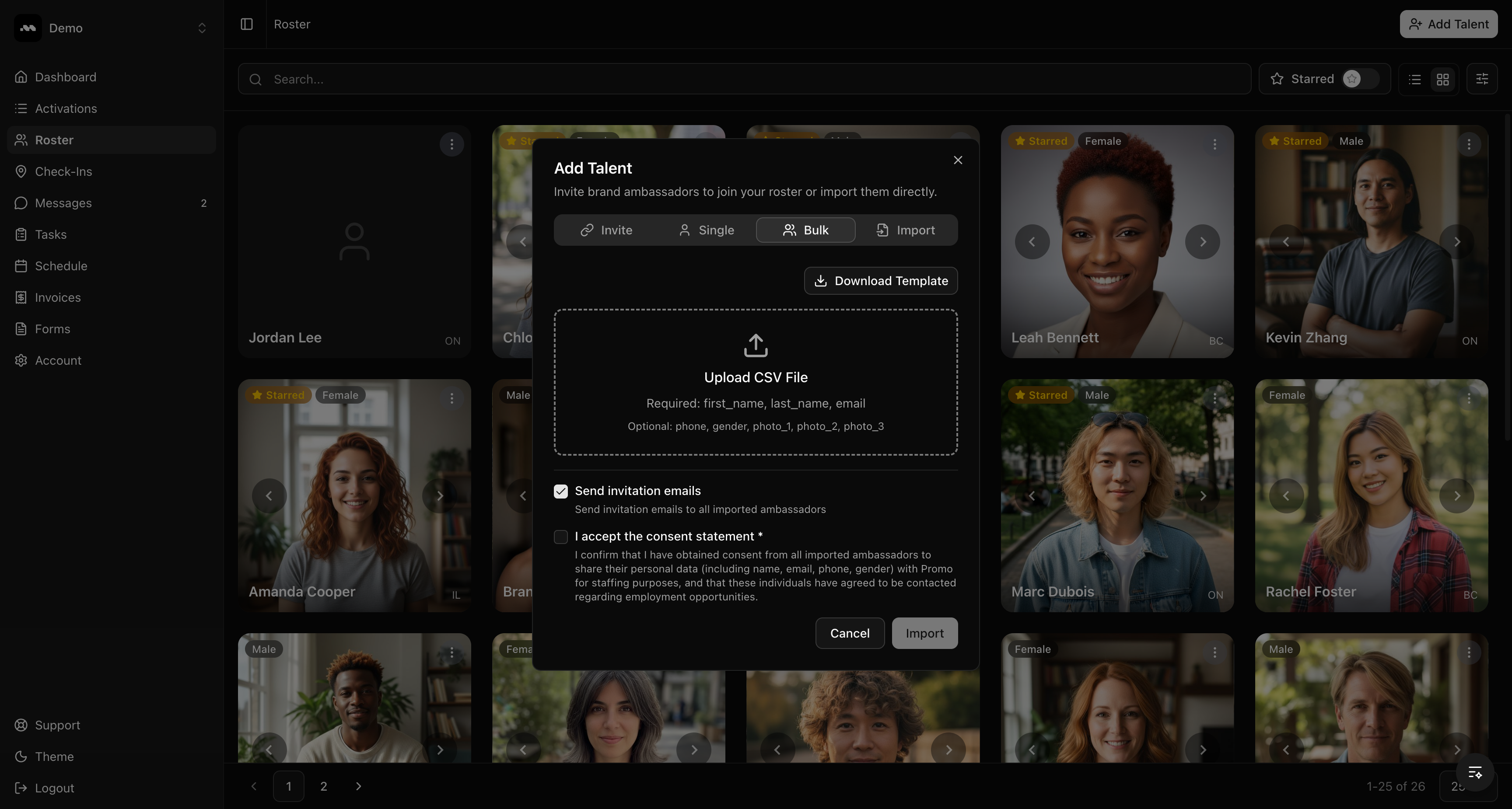
1
Download the template
Click Download Template to get a CSV file with the correct column headers.
2
Fill in your data
Open the template and add your ambassador data. Required columns are
first_name, last_name, and email. Optional columns include phone, gender, photo_1, photo_2, and photo_3.3
Upload and review
Drag your CSV file into the upload area or click to browse. Promo will preview your data and flag any duplicates or errors before importing.
4
Accept consent and import
Check the consent statement, then click Import to add all valid entries to your roster.
Method 4: Import from another platform
Switch to the Import tab to migrate your roster from a staffing platform like PopBookings.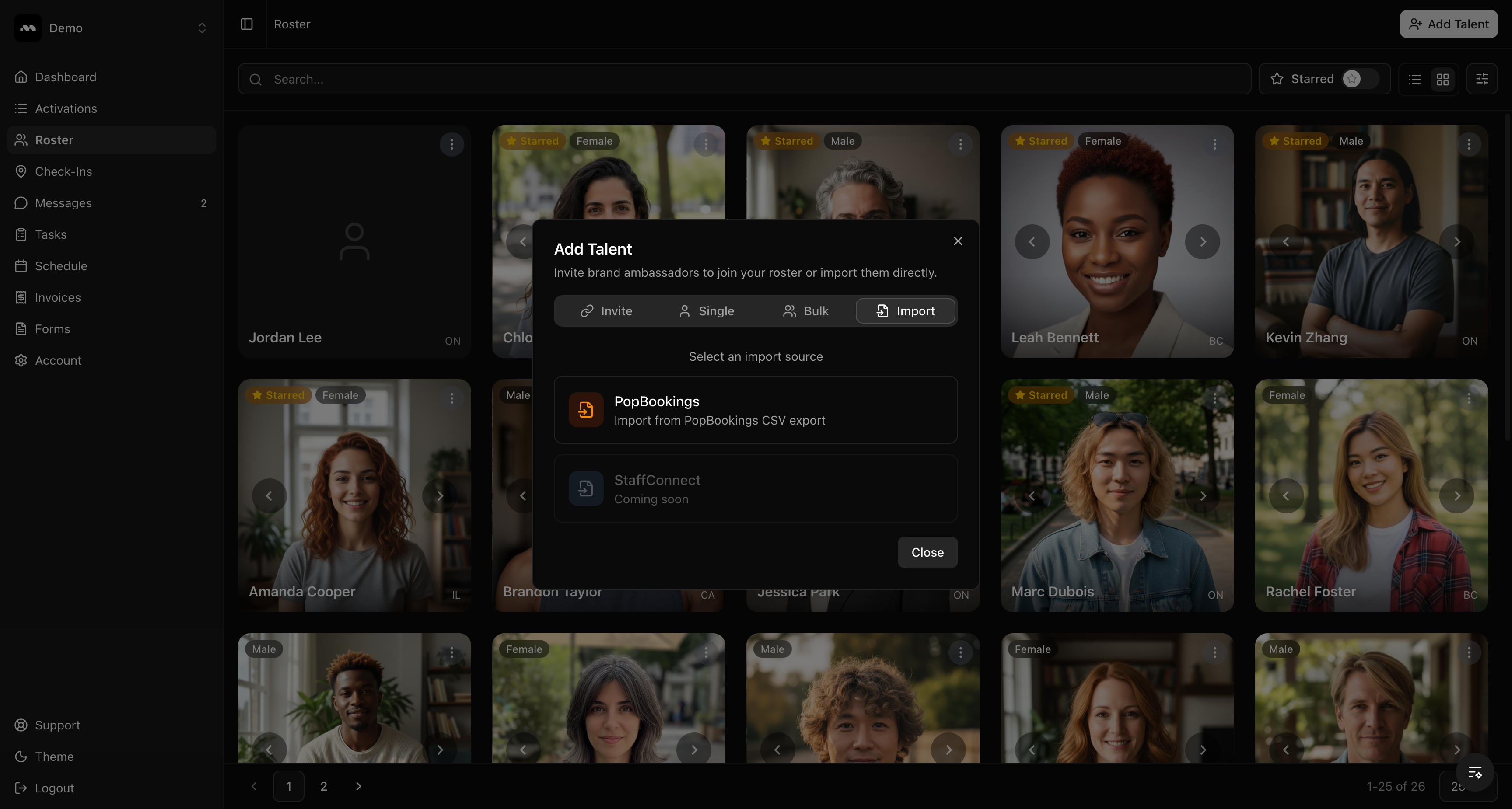
StaffConnect import is coming soon. Contact support if you need to migrate from another platform not listed here.
View ambassador details
Click on any ambassador card to open the detail panel on the right side of the screen. This shows their full profile including:- Media portfolio photos
- Work experience and education
- Skills and certifications
- Applications to your activations
- Reviews and ratings from your team
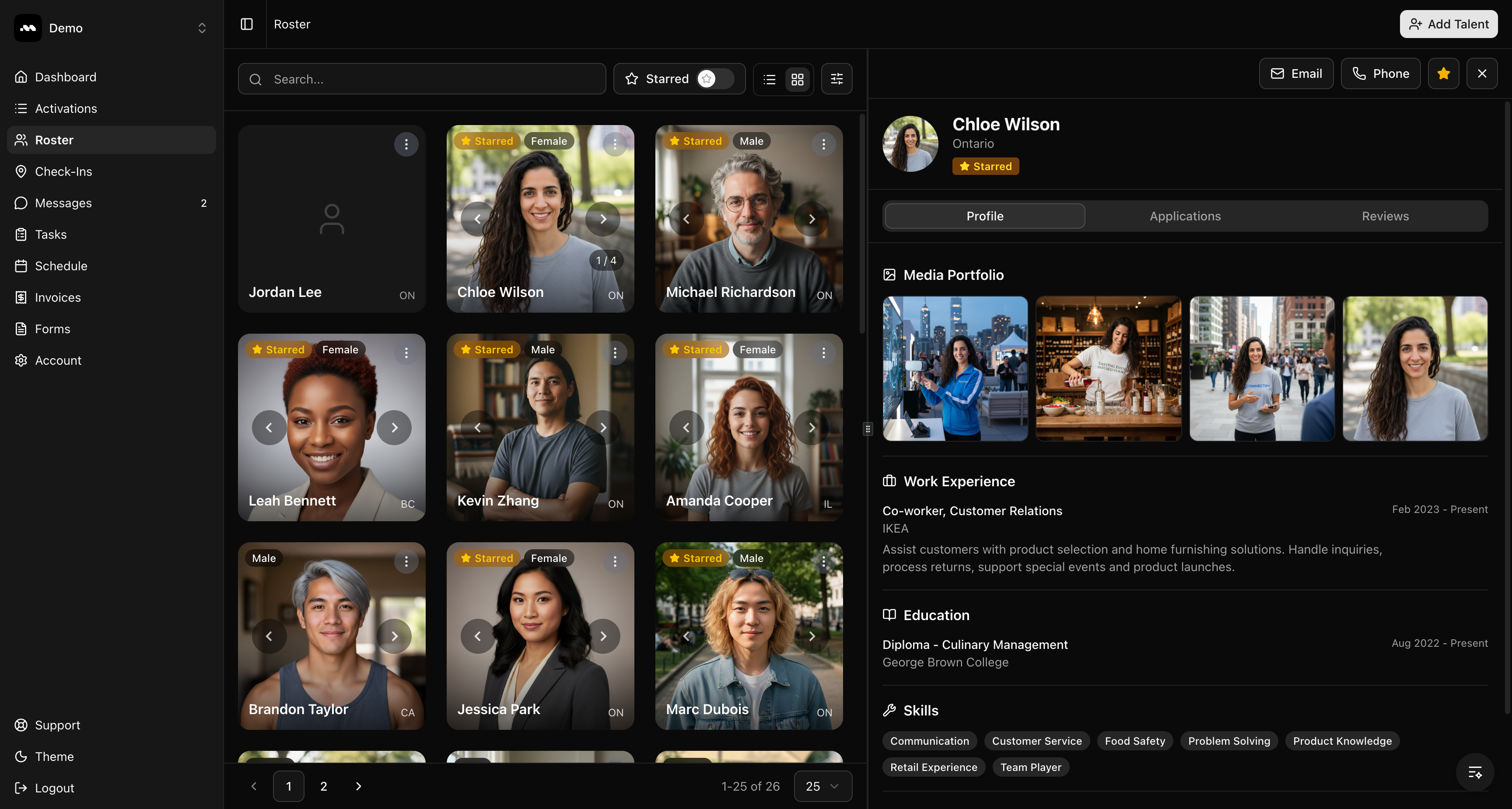
- Star an ambassador to mark them as a favorite
- Email or Phone them directly
- Switch to the Applications tab to see their history with your agency
- Switch to the Reviews tab to add ratings and notes