

Your inbox
Navigate to Messages in the sidebar to see all your conversations. Each conversation shows the ambassador’s name, a preview of the last message, and the conversation status. Unread conversations are highlighted with a dot next to the ambassador’s name.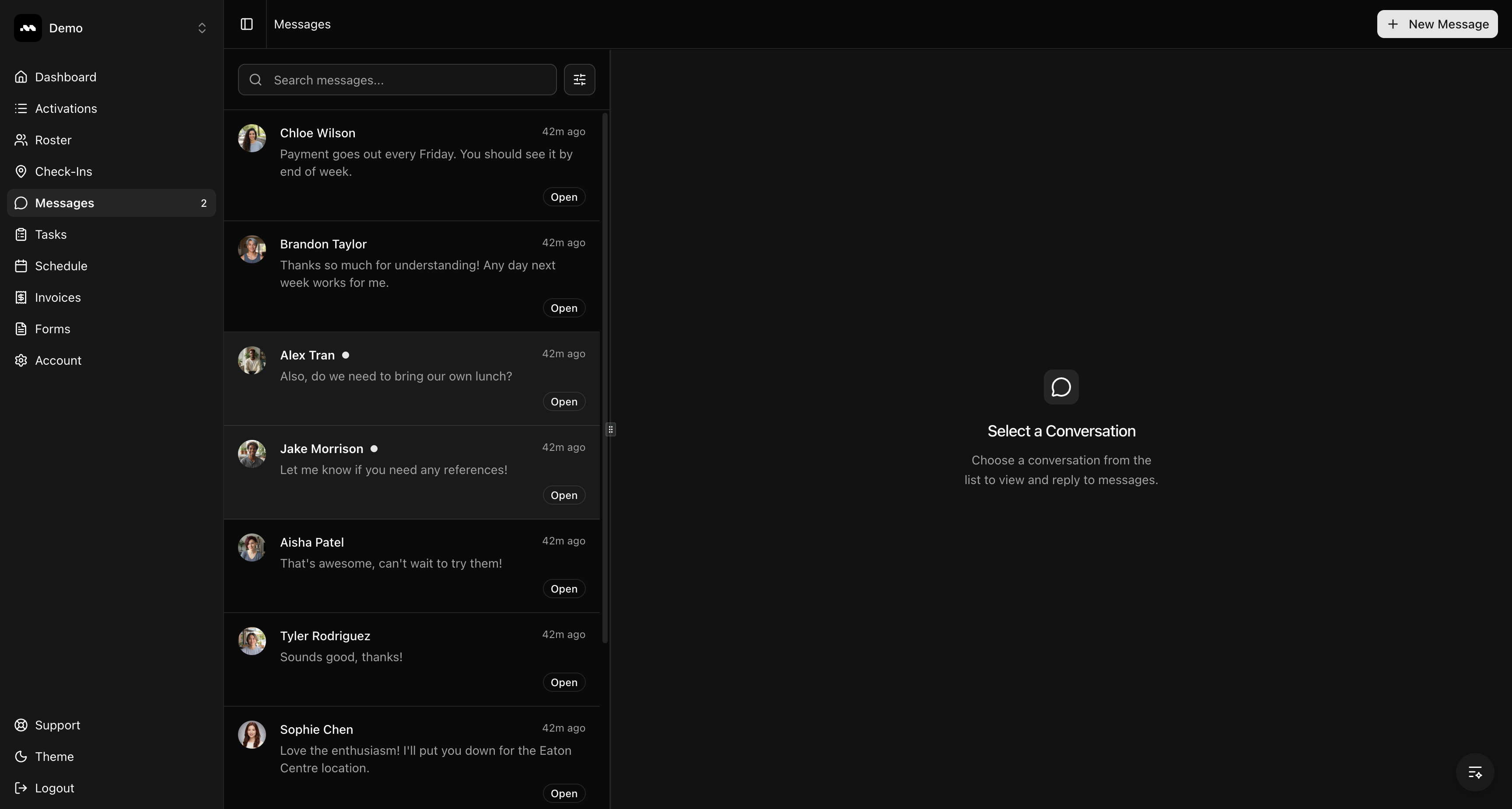
Read and reply to a conversation
1
Open a conversation
Click any conversation in the list. The message thread opens in the right panel, showing the full history organized by date.Your messages appear in blue on the right. Ambassador messages appear in gray on the left.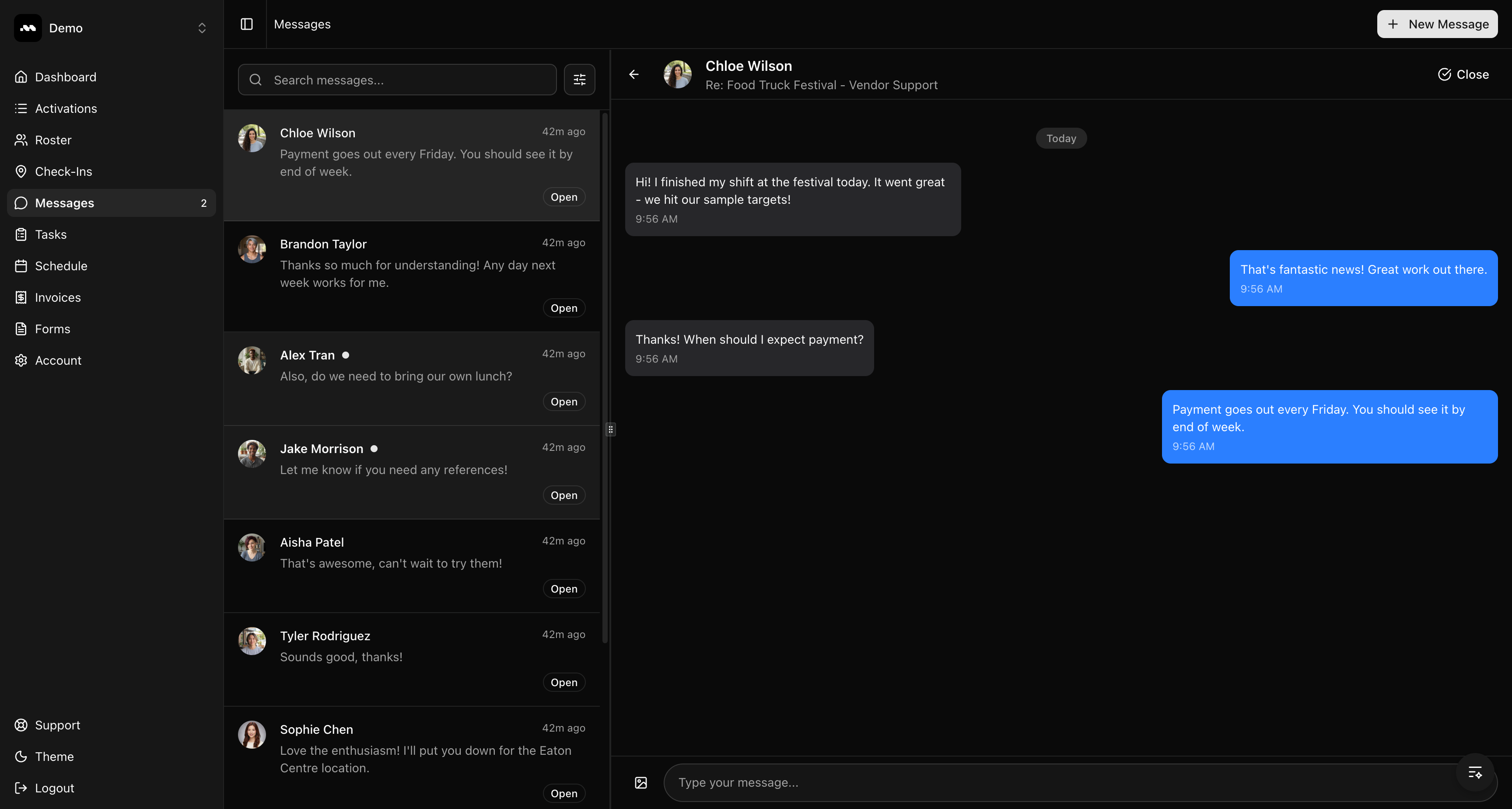
2
Type your reply
Click the text field at the bottom and type your message. Press Enter to send, or Shift + Enter to add a new line.You can also attach an image by clicking the image icon to the left of the text field.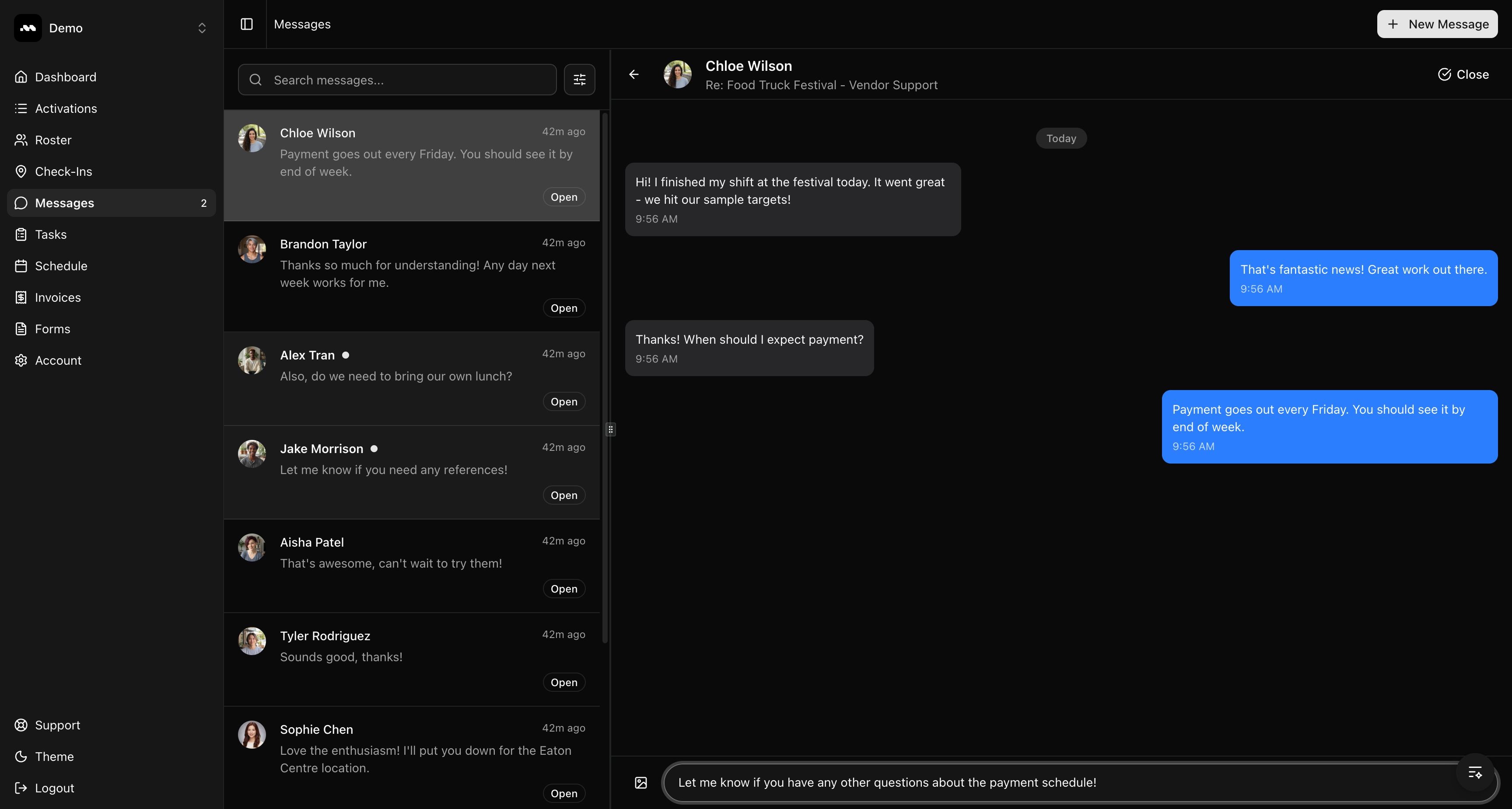
Start a new conversation
1
Click New Message
Click the + New Message button in the top right corner. A dialog opens where you can search your roster.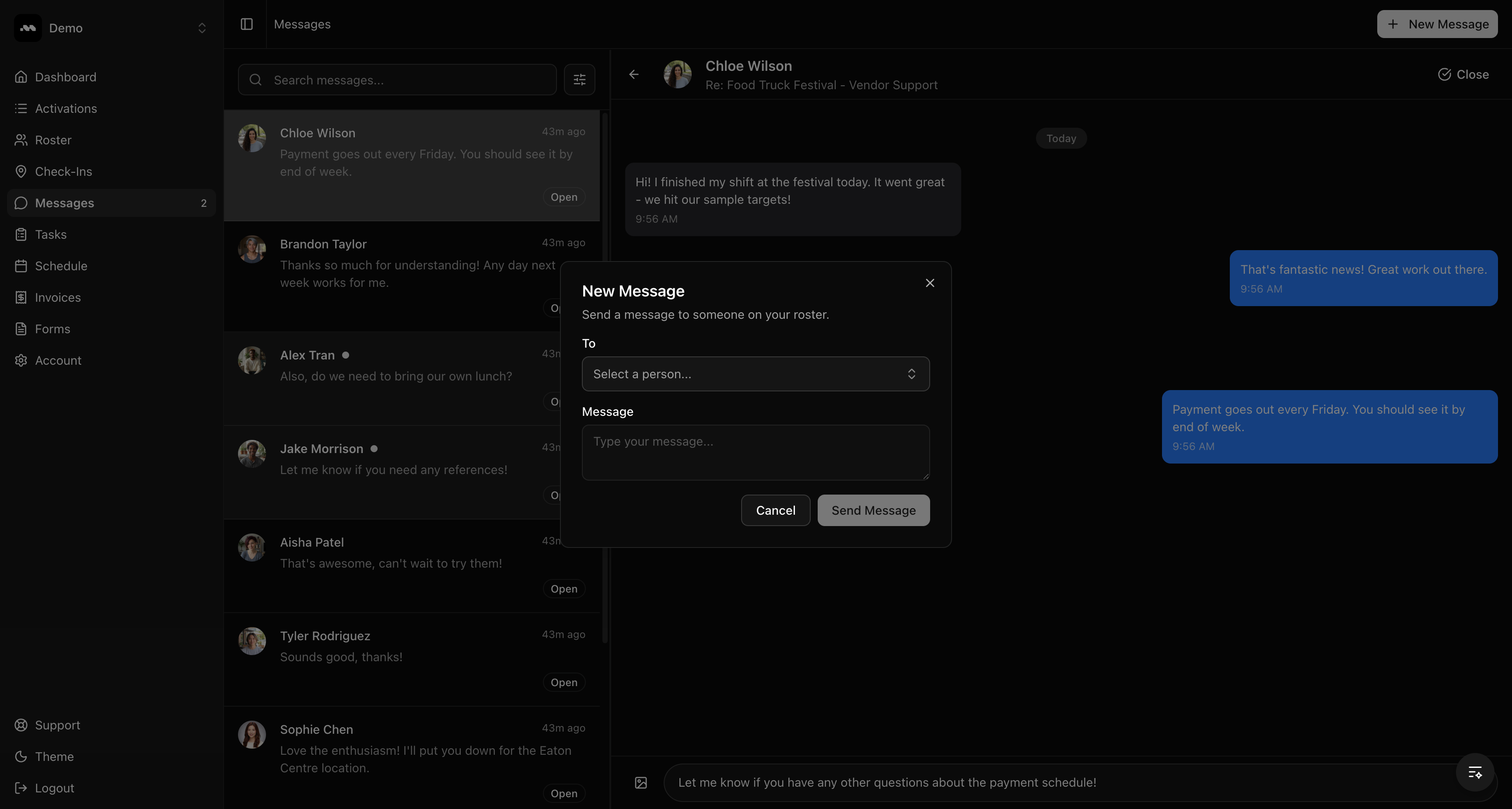
2
Search and select a person
Type a name, email, or phone number in the To field. Select the person from the dropdown, write your message, and click Send Message.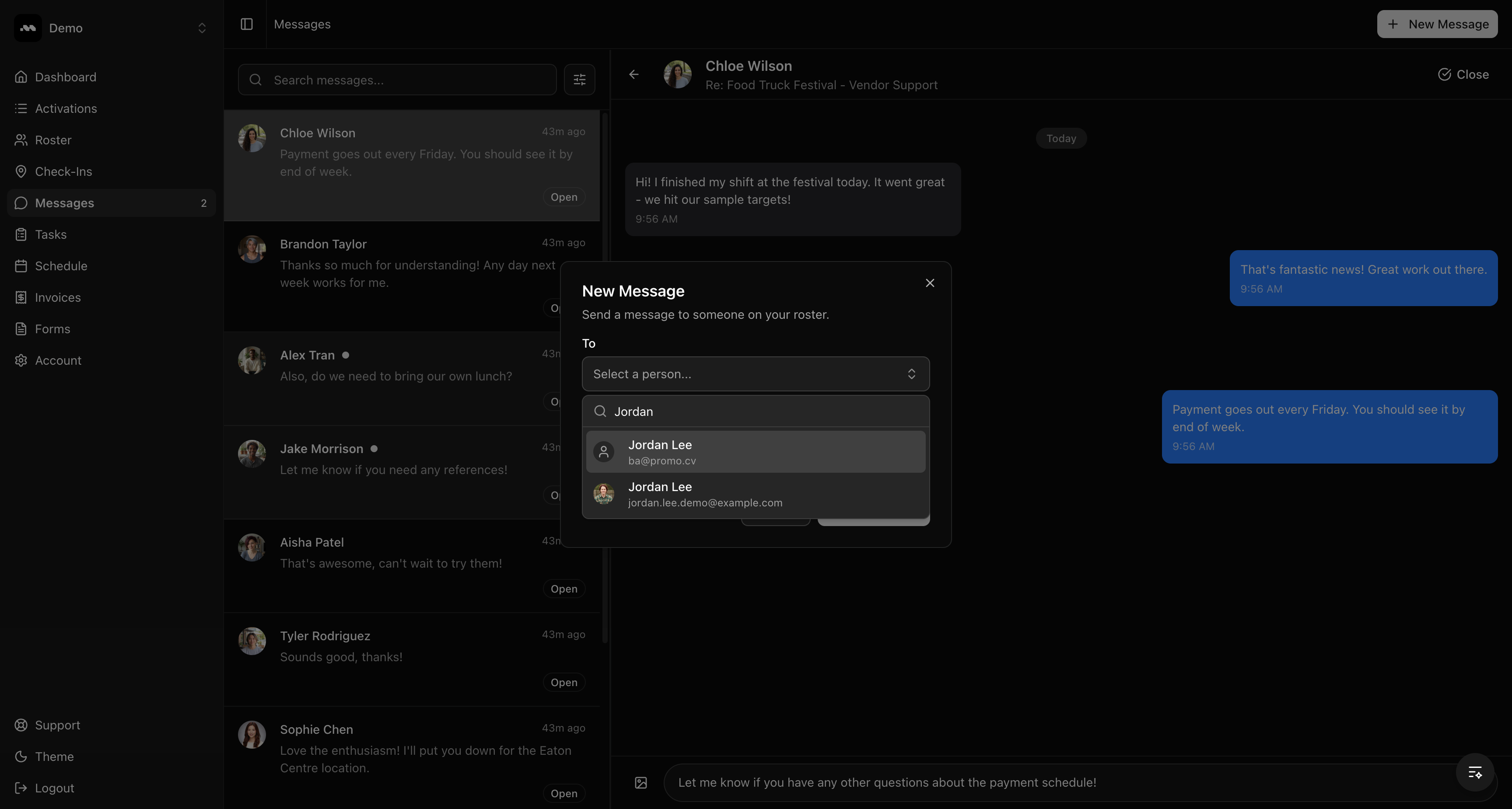
You can only message people who are on your roster. If you need to add someone first, go to the Roster page.
Filter conversations
Click the filter icon next to the search bar to open the Filters panel. You can filter by:- Status — Show only Open or Closed conversations
- Activation — Show conversations related to a specific activation
- Unread Only — Toggle to see only unread conversations

View an ambassador’s profile
Click the ambassador’s name in the conversation header to open their profile panel on the right. You can see their media portfolio, work experience, education, skills, and certifications without leaving the conversation.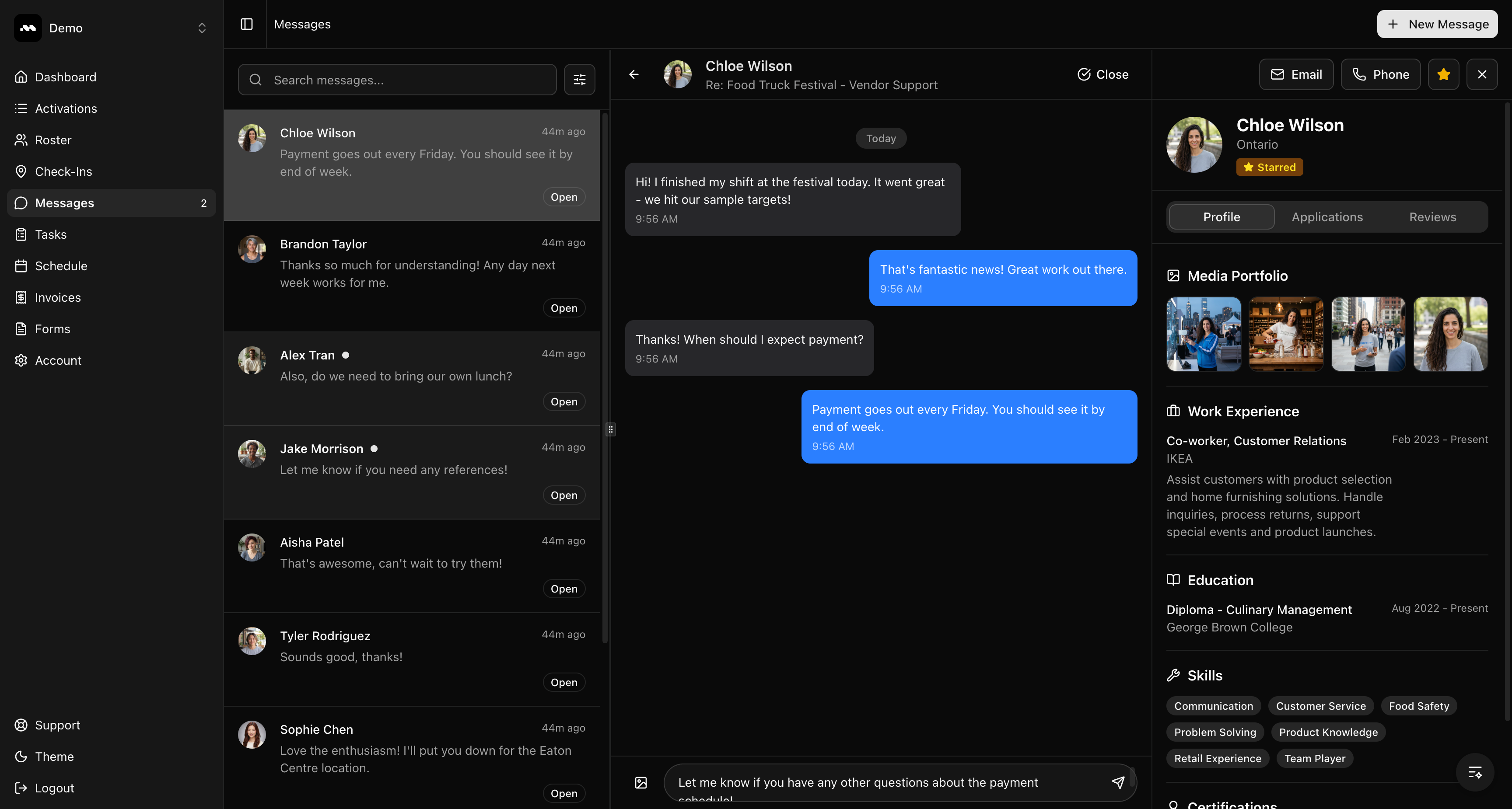
- Email or Phone the ambassador directly
- Star them for quick reference
- View their Applications and Reviews using the tabs
Close and reopen conversations
Click the Close button in the conversation header to mark a conversation as resolved. Closed conversations move to the “Closed” filter view. To reopen a closed conversation, select it and click Reopen. If an ambassador sends a new message to a closed conversation, it reopens automatically.Tips
The unread count shown next to “Messages” in the sidebar updates in real time, so you always know when new messages arrive.