

Viewing task details
1
Open a task
From the Tasks page, click on any task to open its detail view. At the top you’ll see summary stats — total assignments, completed, pending, and overdue counts.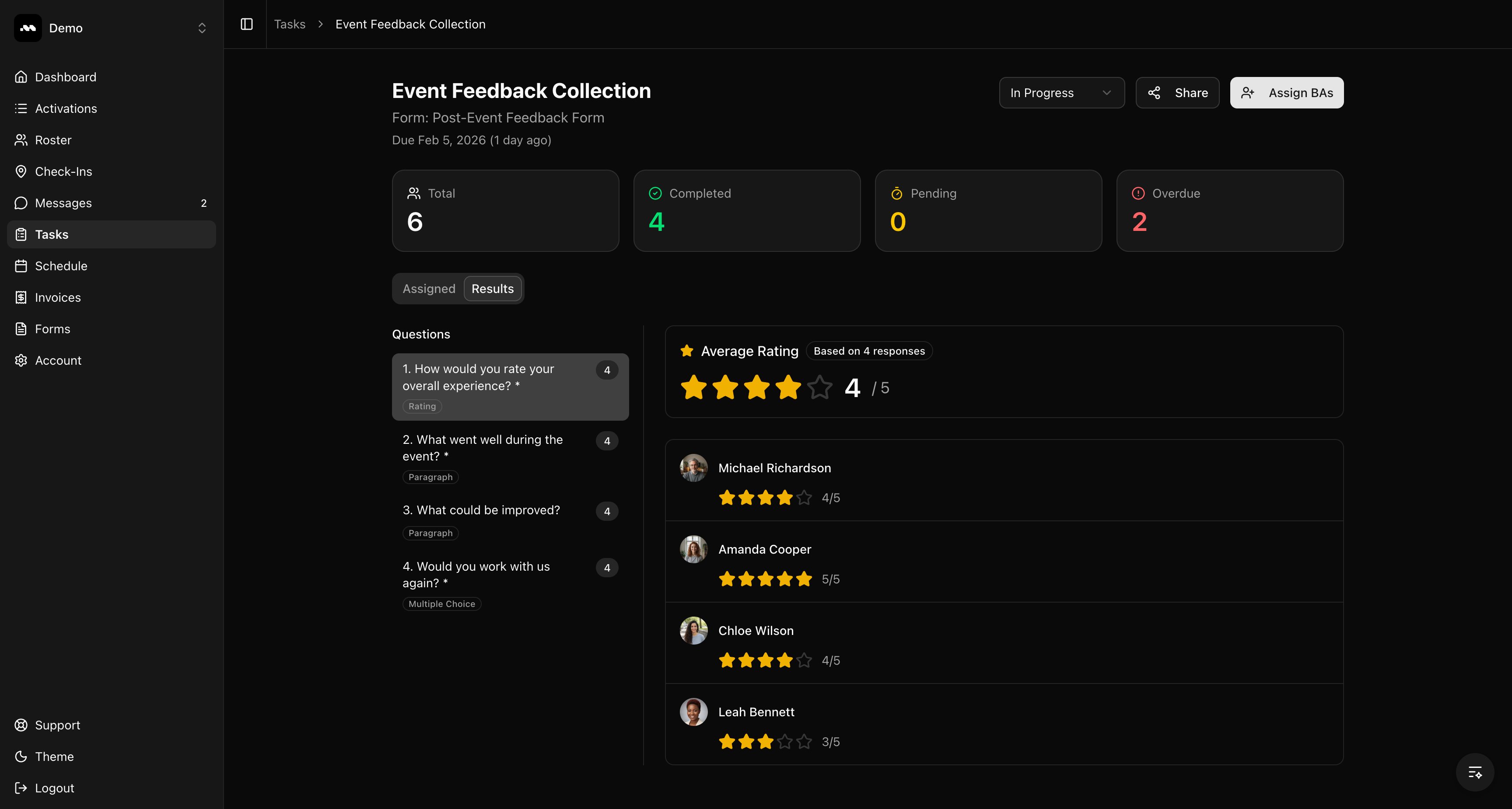
Reviewing results
1
Browse responses by question
The Results tab shows a question sidebar on the left. Click any question to see all responses for that question. For rating questions, you’ll see the average score and each ambassador’s individual rating.
2
Read AI summaries for text responses
For text and paragraph questions, an AI Summary appears at the top highlighting common themes across all responses. Individual responses are listed below.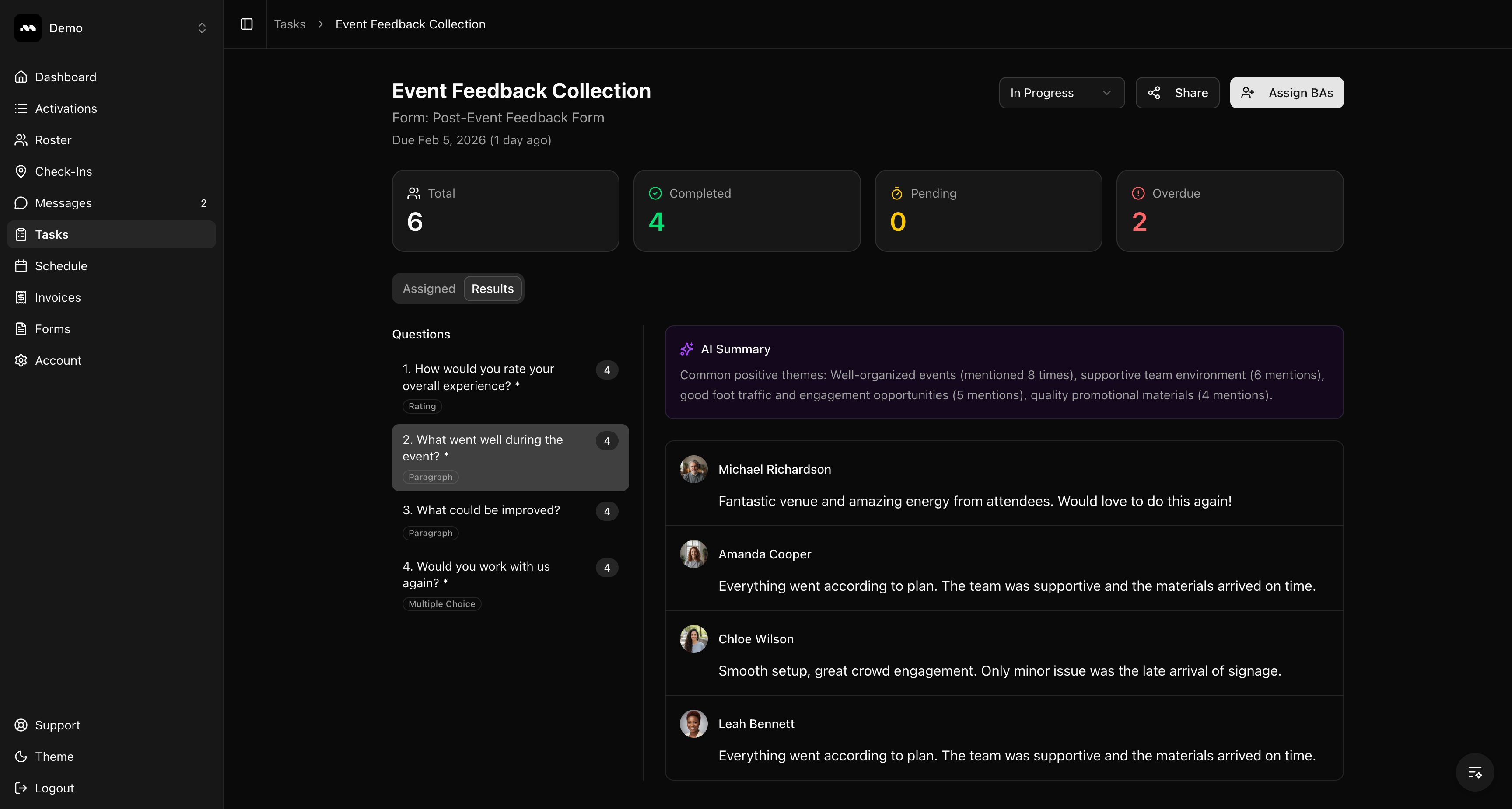
Managing assignments
1
View assigned ambassadors
Switch to the Assigned tab to see all ambassadors assigned to this task. Use the filter tabs (All, Pending, Completed, Overdue) or the search bar to find specific people.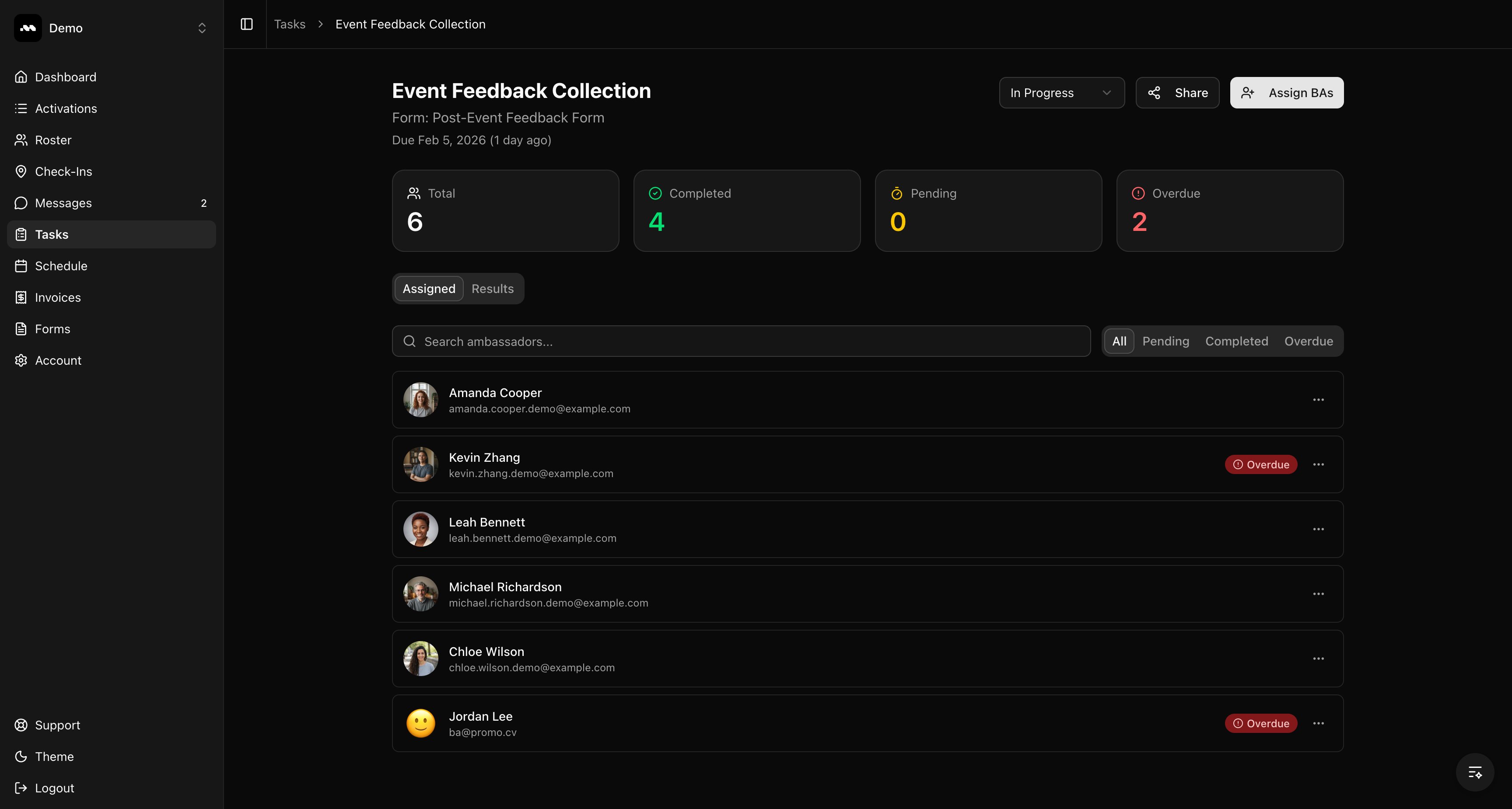
2
Send reminders or remove assignments
Click the three-dot menu next to any ambassador to Send Reminder (for overdue or pending) or Remove them from the task.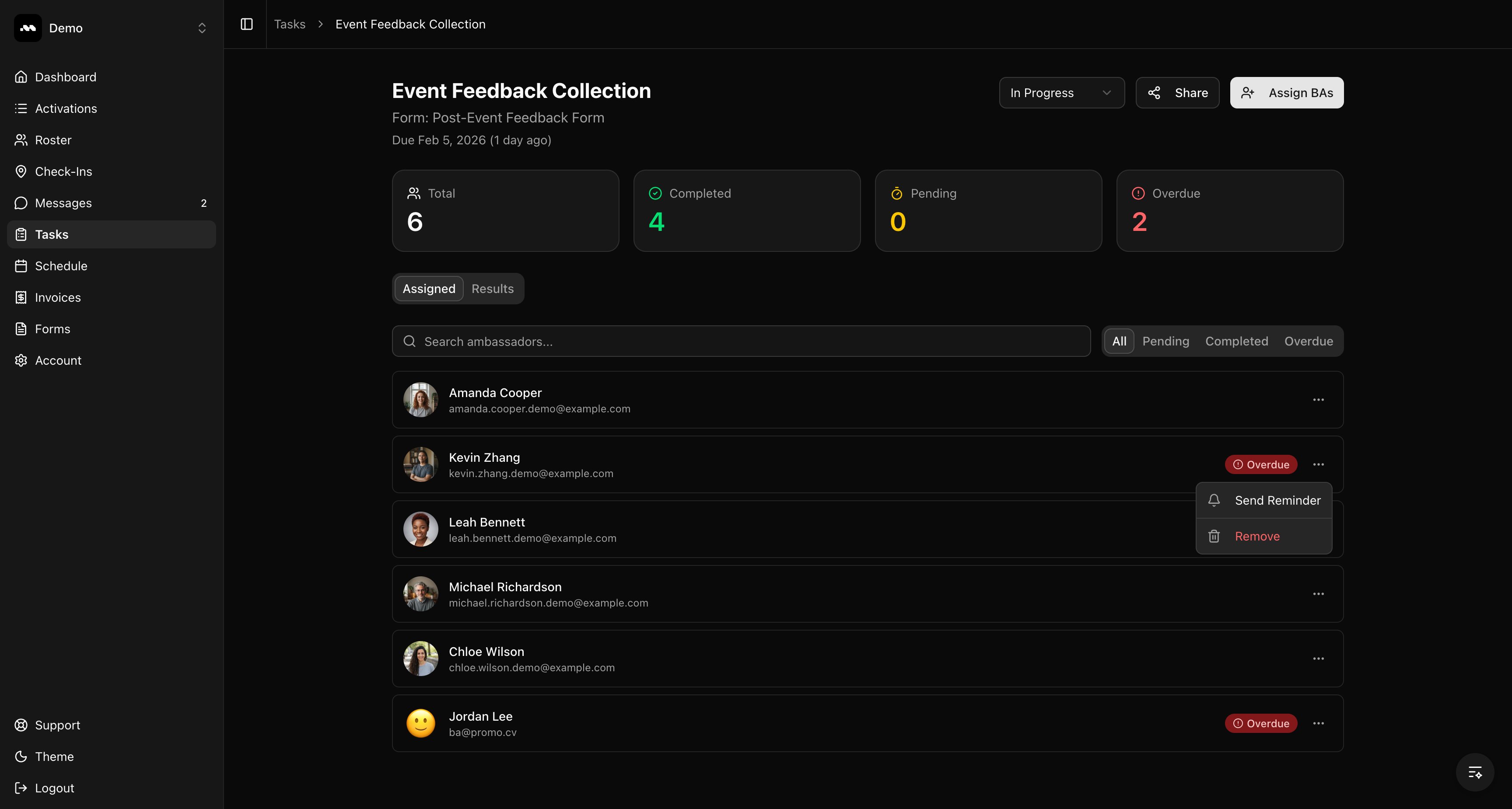
Reminders can only be sent once every 24 hours per ambassador.
Sharing results
1
Share with your client
Click the Share button in the task header to open the share modal. Copy the public link or enter an email address to send it directly. The public results page shows anonymized responses (first name and last initial only).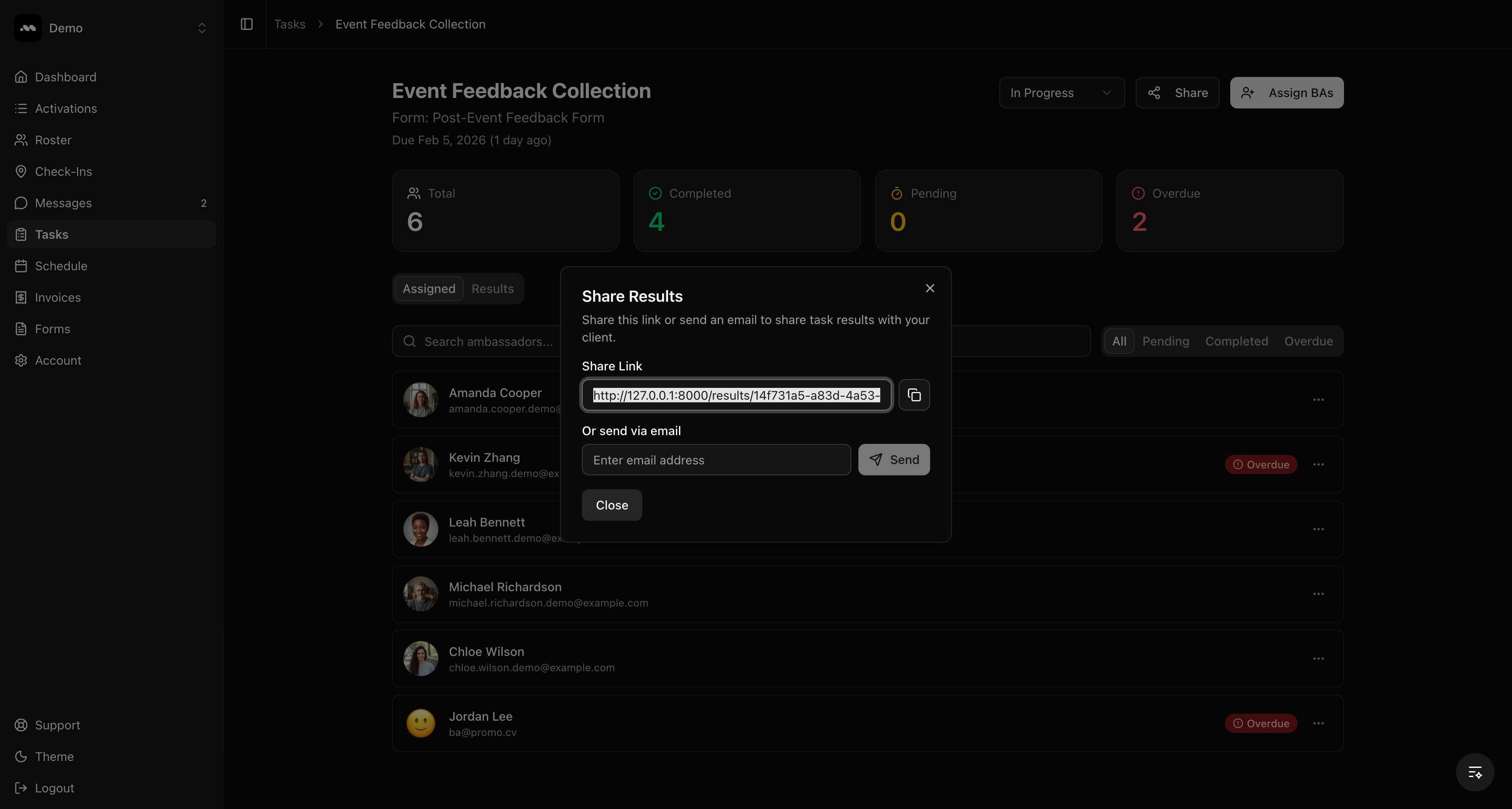
Tips
The public share link does not require login. Anyone with the link can view the results page.